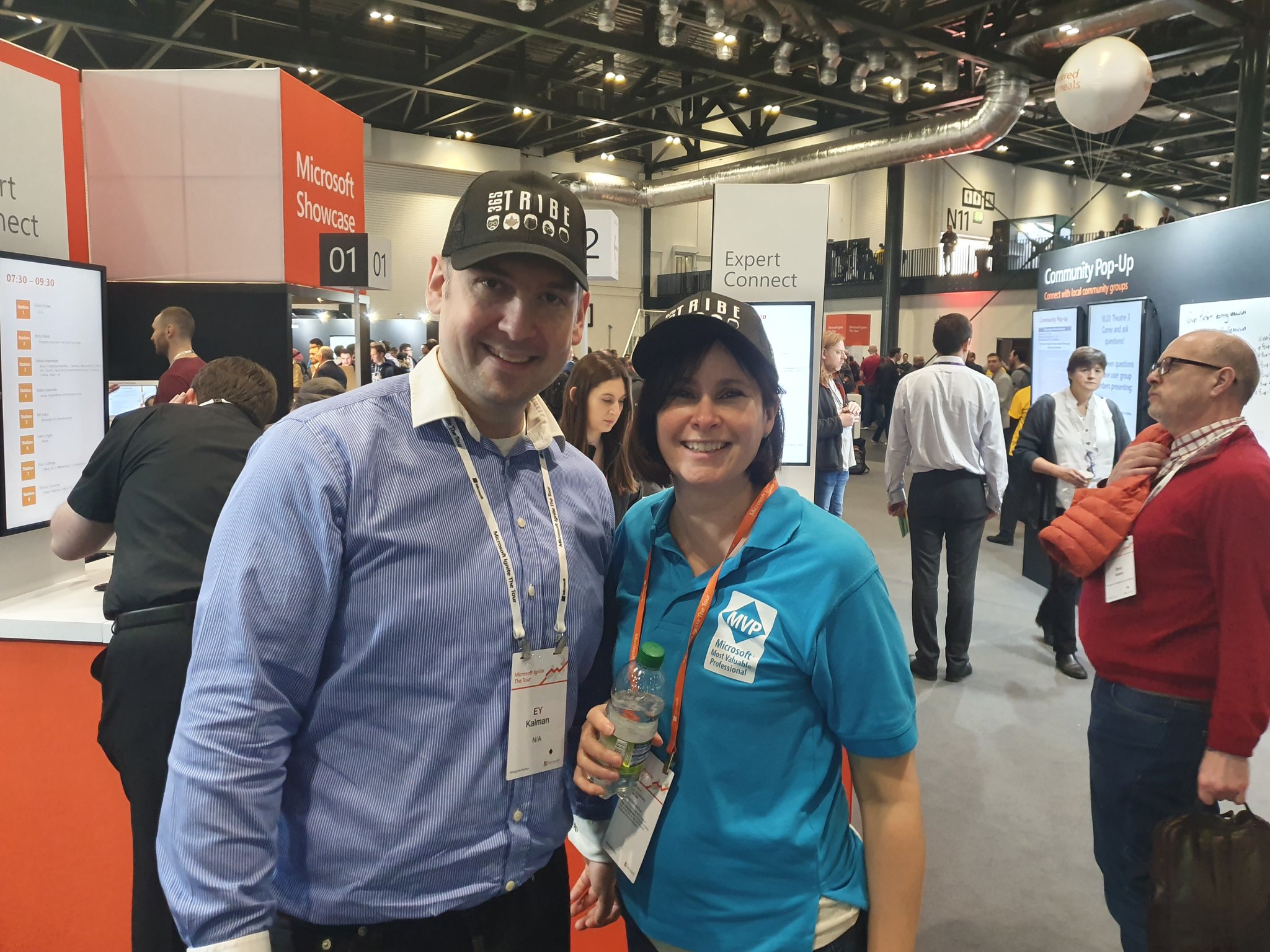
Microsoft Ignite The Tour (2020): London

Well, firstly this isn’t about Omnichannel. Or any specific deep dive into technology. What is IS about is the first time I’ve gone to a Microsoft conference/exhibition. And it was amazingly awesomely wonderful.

Having seen several other write-ups from people who visited it, I thought I’d write my own, to share my perspectives and thoughts on it.

The queues to get in!

Now, it’s not the first time I’ve been to exhibitions and/or conferences. Far from it – I go to several each year (in fact these are usually where I get my t-shirts and pens/pencils from – I rarely buy these at all! My wife despairs sometimes of my very ‘tech-orientated’ t-shirt collection). I’ve frequented Service Desk (https://www.servicedeskshow.com/) for over a decade, as well as InfoSec (https://www.infosecurityeurope.com/), Counter Terror (https://www.ctexpo.co.uk/) and DsEI (https://www.dsei.co.uk/) as well.

I’ve even been to CES (https://www.ces.tech/) in Las Vegas a few years back. Now if there’s ever a place where consumer technology is showcased, that is truly the place for it. I even managed to get myself upgraded to a Press Pass there, which came with a cool backpack, early access to the exhibition floor, and free WiFi.

Ignite was different. True, it included people speaking about Microsoft technology (and these were really and truly awesome people, some of whom I know personally), showcasing and demoing it.

EOfVQ4qWsAA3ecx (1024×768)
The famous Keith ‘I’m a Ginger’ Whatling

But what it also included, and had a deep emphasis on was Community. There were many different User Groups present, talking about how we can all enable and support each other. There were mini-sessions by speakers, un-conferences, Q&A sessions, etc. Many people from all over the UK, as well as abroad, took part in this. It really emphasised for me just how important our technical communities are, and how much we can learn from each other from them!

Of course, I attended many of the sessions that were happening. I tried to mix these up, aiming to attend both professional learning as well as personal development learning. My schedule was as follows:

Day 1:

  • Enabling everyone to digitize apps and processes with Power Apps and the Power Platform
  • Intelligent automation with Microsoft Power Automate
  • #HumansofIT with Tech Superpowers: How Heathrow’s Security Officer Launched 12 #PowerApps
  • Connecting Power Apps, Microsoft Power Automate, Power BI, and the Common Data Service with data
  • Practicing Kindness in Tech: 5 Steps to Build a Culture of Giving Back and Helping Others in the Community
  • Supervisor experiences in Omnichannel

Day 2:

  • PowerPlatform London User Group sessions
  • Humans of IT Empower Breakfast Panel – Interconnected Data for an Interconnected Planet: The Future of Agritech
  • Imposter Syndrom Banishing Spell
  • Azure AI & Dynamics 365 Virtual Agent for Property and Real Estate Market use case: Delivering significant cost reduction and tangible revenue growth
  • The Power People of London Town: Power Apps and Power Automate
  • Configuring and managing Dynamics 365 Sales and Dynamics 365 Marketing – Establish connected Sales and Marketing
  • Responding to incidents
  • From Geek to Chic: Build Your Brand & Elevate Your Career in 5 Steps

There were fabulous speakers – really too many to mention (especially as I also managed to network with various others). From FINALLY meeting Samit Saini (it’s only taken 6 months) in person to hearing Dona Sarkar and Dux Raymond, from Rory Neary to Mark Wilcock, it truly was a pleasure to listen to what they had to say.

Dona, Samit & Duc

The networking opportunities available were also unbelievable. With an estimated 5000 people attending, I met up with others who I had only corresponded with digitally to date. Even more wonderful was meeting new people, sharing ideas and concepts, and already keeping in touch and corresponding with in the short time since Ignite finished here.

The sense of community involvement was indescribable. People were sharing resources, suggesting who to follow online, and who to reach out to if they had any questions about anything.

Don’t worry – someone added me to this later on!

It was also truly great to see the launch of the #PowerPlatypus. I’m going to unashamedly take full credit for this marvellous creature coming to fruition (well, until anyone official from Microsoft can prove otherwise), due to the Twitter poll that I put out last year:

I’ve come away with so much learned in such a short space of time, and many notes on much more that I need to look into. Best of all, I’ve come away with many further connections, and I’m really looking forward to seeing what we can all come up with.

One really useful thing to note as well about Ignite – everyone who attended gets a free Microsoft Exam voucher that they can use to take any exam with!. To redeem this, find the exam you’d like to take, log in to schedule it, and then you should be given an option to use it:

This is so wonderful, and I really do appreciate Microsoft providing this (especially as Ignite the Tour is free to attend!).

I’ve already made a note to attend the tour next year (as I won’t be able to attend the main Ignite conference), and are looking forward to seeing what it brings, and who I’ll be able to meet there. Perhaps even, I might apply to speak at a session!

Required fields on forms – what did you forget to fill in?

Well, somewhat of a mouthful of a title for this article, but I couldn’t think of a better way to put it!

You know the scenario – we’ve all been there. There’s a custom form (for a system entity, or even a custom entity). Multiple sections, tabs, and multiple fields that are required. Users are going through data entry, but SOMEHOW have forgotten to fill one (or more???) in, and they’re just not able to save the form!

Well, Microsoft has now upped the quality of the user experience, and OH BOY was I SO excited to see this!

Previously when you clicked the Save button, it just wouldn’t allow you to save. It told you that it was missing required information, and you had to go search to see WHICH field(s) you had missed out on.

But search no longer. For now the notification bar has a whole new behaviour:

Firstly, it tells you that there are notifications, and to select to view (Note: If you’ve only missed out one field, just skip to step 2!)

Then when you click on it, it tells you which (required) fields have data missing from them!

Even better, if you click on the notification for a specific missing field, it even takes you to that field – no longer do you have to try to find where it is!

This is truly amazing, and will help enable users (and relieve their frustration) so much!

Canvas Apps & Lookup Fields (CDS)

Canvas apps are amazing. Seriously so. I’ve been developing my knowledge around them, and it’s incredible what you’re able to do with them. Clients are loving them as well, with how quickly it’s possible to develop something that’s visually appealing.

From a licensing perspective when looking at using data into/out of D365, I’m usually using the CDS as the datasource. This means that apart from a handful of scenarios, users would be licensed with a PowerApps licence, rather than a D365 one.

With all of the wonders and benefits that canvas apps brings, there still are some limitations. One of them I came across earlier today pertains to lookup fields.

Using Contact as an example, we see that ‘Currency’ is a lookup field:

When inserting a Gallery control, it’s possible to choose up to 3 fields to be displayed (depending on the layout selected). However, when we go set the value to a lookup field from the entity, they’re not there – it’s not possible to select a lookup field to be displayed. As you can see below, there’s no possibility to select ‘Currency’ (which we saw above):

I have no idea why Microsoft chose to do this, as it is possible to select a lookup field when connecting using a D365 datasource (though admittedly even then it only seems to work in limited situations, such as for Opportunities)

So, ways to work around it:

  1. Don’t! Accept the situation for what it is, and hope that Microsoft allows it in the future
  2. Create a custom text field for the entity. Create behaviour (eg with Flow, though keep in mind scalability of the solution and Flow run limits – you don’t want to be burning through all of them!) to copy the value of the lookup field to this new field (ensure that if the value is changed, it updates the custom field value as well). You can then use this field to be shown on the gallery control
  3. For lookup fields that are actually lookups (see item 4 below), it’s possible to change the ‘Text’ property for the field. Using the example above of Currency, the formula needed would be ‘LookUp(Currencies,’Currency Name’ = ThisItem.Currency.’Currency Name’) (without the extra quotation marks). See left side image below for example of this
  4. For lookup fields that are actually of type ‘Customer’ (yup – special behaviour…thanks Microsoft!) there’s a different way that you’ll need to do this. You have to use the AsType function to declare  the type (i.e. account) of the relationship (this can also work for Owner fields, where the owner can be a user or a team). The formula needed to show the Account name would be AsType(ThisItem.’Company Name’,[@Accounts]).’Account Name’. See right side image below for the example of this

I’d also like to give thanks to Jason Almeida for his help and assistance with finding solutions – he’s an amazing guy!

What are your thoughts on this?

Canvas Apps – Changing field order

Image result for field order

In Model Apps, it’s extremely easy to set out the fields on the form as you wish to. It’s a simple case of drag and drop.

However when looking at Canvas Apps, it’s not so straightforward (at least not initially!).

When adding a form to the app, you can then select which fields you’d like to appear (assuming you’ve connected it to a data source with fields, eg a CDS entity). These then show up, but aren’t always in the order that you’re wanting them to.

You can’t drag and drop the fields on the form itself – the interface doesn’t allow you to! So how exactly is this done then?

It’s actually done on the field selector slide out – you click the field that you want to change the placement of, and move it up (or down) the list.

This will then change where the field is then displayed on the form (you can also do some clever stuff with the number of columns being used etc). Quite a nice way to easily update them.

Happy layout placing!!

PowerPlatform & Commenting

The thinking behind this came out of a conversation I was having with someone last week. I had asked them to briefly document their thinking behind what they were creating on the PowerPlatform (especially with PowerApps). This would help me (and others) when reviewing the created item/s, to understand the thought processes and logic paths.

Image result for code comments

I mentioned to them that traditionally when coding, developers would include comments in the code itself. This would help other developers in reading through it, understand why things had been done in a specific way, and not in another way. Heck – even though I have minimal coding experience (mostly SQL), even I’ve done that.

Apparently they had NEVER heard of this. Somewhat surprising, as they’re from a technical background.

This got me to thinking – with the shift from Microsoft to LowCode/NoCode, it would be great if there was somewhere where comments could be loaded when doing PowerPlatform stuff. This is especially true when trying to follow a line of thinking from people who are more orientated towards the business side of things, rather than the tech side.

Image result for code comments

So – how/what would YOU suggest to handle this? Please comment!

Scaling up to Enterprise Level

Image result for enterprise level

In my previous post (Creating a Flow to set record image), I created a way to bring an image into the CDS from an external source. This works well (obviously!).

There are 3 stages involved in the process:

The next stage of thinking is if we would be doing this in an enterprise environment, how would we do things differently? Talking to Mike Carlton, there are a number of things that we’d need to take into consideration, including (but not limited) to:

  • Security
  • Storage
  • Compatibility
  • Classification
  • Record management & lifespan

Let’s talk about these, and go into more detail for each

Security. There are a number of ways in which people try to hide attacks. One of these ways are in images – it’s possible to include a .exe file (or similar) – the user downloads a normal looking image, which is actually an attach vector onto the computer. To minimise the risk of this occuring, the image file would need to be scanned by appropriate antivirus/antimalware first (which is a Flow action, using Azure Security for this purpose). Incidentally Microsoft use the same heuristic engine across all of their estate, so some people would want to also incorporate a second one as well

Storage. As everyone knows, storage is important! And depending on what type of storage is being used, pricing can vary greatly (anyone who’s costed D365 storage against Sharepoint storage against Azure Blob storage will know this). It’s therefore important to keep on top of this, as otherwise it’s very possible that the storage costs will increase rapidly! It would therefore be rational to include a file size check, to avoid someone trying to use an image file that’s hundreds (or thousands) of MB’s.

Compatibility. In the scenario here, we’re using an image. There are many different image types, and when scaling up we should implement checks to ensure that the image type is indeed one that’s supported (by whatever system we’re pushing the image into). In scenarios for other data types, it would also be important to check (and enforce when required).

Classification. When bringing data into a system from external resources, it’s essential that correct classification (ie metadata) is stored against the data. This ensures that the system is kept

Records Management & Lifespan. When scaling up functionality, it’s important to start considering who should have access to the data, and if any necessary security controls should be put in place to manage this. It’s also important to understand how long data should be kept with the system, and if processes should be implemented in order to redact and/or remove the data after a specified period of time (this is extremely relevant with GDPR now being in place)