Omnichannel & Sentiment Analysis (II)

I’ve previously touched upon sentiment analysis within Omnichannel in several articles (https://thecrm.ninja/omnichannel-sentiment-analysis/ and https://thecrm.ninja/omnichannel-supervisor-tools/). It’s really a great feature that allows agents to quickly & easily see how the customer is interacting. It also allows for supervisors to see at a glance how interactions are going overall.

With all of that, I thought it would be helpful to take a further look into how sentiment analysis actually works, so that we can understand it a little better.

Now, the actual nuts & bolts for sentiment analysis are provided by Azure Cognitive Services. There are a wide range of tools available through this, but we have no need to go into Azure to configure this. It’s a simple setting within Omnichannel to get it working, rather than needing to fiddle around with many different things:

However, what’s actually going on during a conversation, and how is the sentiment analysis worked out/calculated? We see the pretty little face icons (with the different colours), but how are these actually being set?

Well, there are two ways in which algorithms are used to calculate the sentiment that’s shown:

  • Natural language processing (NLP)
  • Machine learning (ML) algorithms

With these two ways methods, it’s possible to not only see what the current interactions are showing, but also to enhance the model to understand sentiment better.

Note: In a session that I presented recently, one of the attendees asked if it’s possible to train the model, to result in a custom algorithm. Unfortunately this isn’t possible to do – the machine learning that takes place is the general Azure one, rather than one for a single company or customer

The following diagram shows the sentiments that are used. They’re nicely colour-coded, for ease of reference as well:

When a customer interacts through Omnichannel, the sentiment shown is based on the last 6 messages received from the customer. As a result, the sentiment shown can very well fluctuate & change during the conversation, based on how it’s going.

The Sweetest Languages in the World - | Beyond Exclamation

Obviously, customers aren’t just going to use English to communicate. Companies are based around the world, and will use their native/local language when providing support. Omnichannel allows for this without an issue, utilising the Azure Text Translator API behind the scenes to provide this. If you’re interested to see which languages are supported for this, head to https://docs.microsoft.com/en-us/azure/cognitive-services/translator/language-support which is the latest source of information for this.

There are some interesting things to know around how this actually works:

  • When a language other than English is used, the Text Translator API translates the text to English, and then it’s analysed/scored for sentiment
  • If a language isn’t supported by the Text Translator API, it won’t be scored
  • If profanity (eg a swearword) is detected, the sentiment will automatically be shown as Negative or Very Negative, regardless of the rest of the last 6 lines of conversation

Some people have expressed their concern to me around how accurate the Azure translation actually is, but to date I haven’t seen any major concerns resulting out from it. As with the other Azure services, Microsoft is continually refining & improving it. That being said, there are several languages with very nuanced terms. I’d like to think that these would be supported without issues.

There is, however, somewhat of an interesting behaviour when starting off the analysis at the beginning of the conversation:

  • If the initial language is detected as English, it’s assumed that all of the subsequent conversation will be in English. As a result, if the customer switches away from English, the system won’t recognise this, and a Neutral sentiment score will be shown
  • If the initial conversation is not in English, then the system will check every conversation line & re-detect the language as necessary.

This seems somewhat strange to me, as I’d have thought that the system would automatically check the language for each conversation line. I can think of plenty of scenarios where different languages are used in a single conversation, even if it does start with English being used. I’d like to think that this will be updated at some point, to make the experience better.

Matt Collins-Jones on The Oops Factor

Going into Matt’s love of films, and why we think we should set up a ‘Quiz Supper Night’ team as a service to others. Discovering the story of the first data migration that he ever did, and his discovery of the special fields to use when uplifting data into a system.

If you’d like to come appear on the show, please sign up at http://bit.ly/2NqP5PV – I’d love to have you on it!

Click here to take a look at the other videos that are available to watch.

Workflows & Managed Solutions

This is about some interesting behaviour around workflows & managed solutions, which I’ve recently discovered. Let me give a bit of background first.

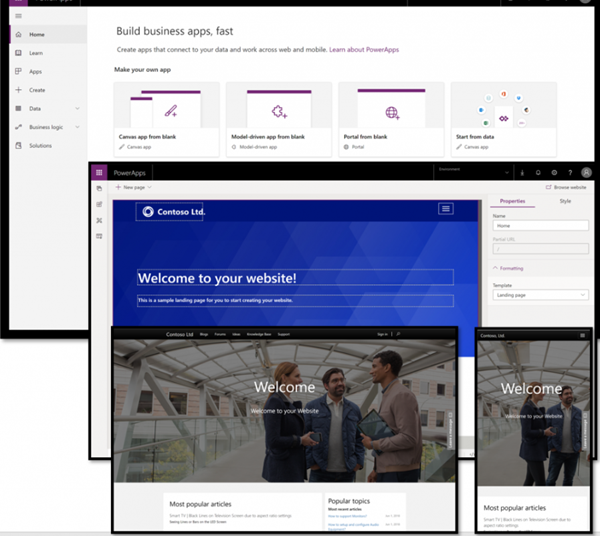
Currently I’m working on several COVID-19 apps for local authorities, to be able to help them assist people in need. As part of this, each local authority has a portal within the solution. The portal itself is a Power App Portal, and I haven’t really had exposure to them before.

blog.atwork.at | Hello, PowerApps Portals (and external users)!
Default portal view, not the one we implemented!

Installing a Power Apps Portal comes with quite a large number of solutions in order to get it to work. More on this below.

Due to the way in which we’re engaging with our clients, the solutions are built in a single tenancy (different environments, of course!). We’re then inviting the users in as guests through Azure Active Directory, to be able to access functionality etc. This works well – we don’t need to worry about managing user accounts, AAD permissions, etc. However it also means that we don’t have any Office 365 licenses within the environment itself.

Now we have workflows that are sending emails out around the portal – registrations, password resets, etc. These are being generated automatically by the system, but as there’s no Office 365 mailbox for the user, they’re queuing up.

It’s not possible to authenticate a mailbox belonging to an external user (we tried!), as the system needs a native (full) user with an active mailbox to be able to send out emails. This is of course unlike Power Automate, where you can create a Send Email action and use specified credentials for logging in to send an email.

So, we did what any normal system administrator/configurator would do. We opened up the relevant (managed) solution, and from there opened up the workflow that we needed to modify. Things looked normal at first – we deactivated the workflow, and started poking around it to see what made it tick.

We came across the part that actually took user credentials to send the email that was being generated, and modified this accordingly. Then we saved the workflow, which was successful. However, upon trying to then reactivate the workflow, we got the following error message (helpful, isn’t it!):

Nicely it gives the option to download the log file around the error. This can usually be quite helpful (at times), so we thought we’d take a look at it. Behold the following (I’ve had to shrink the screenshot to allow it to fit on the screen!):

Isn’t that ‘beautiful’. Don’t worry if you can’t actually make out the error information – none of it makes any sense, at least not in a practical sort of way.

Being stuck at this, I thought to reach out to one of the community Power App Portal champions, Mario Trueba. I’ve known him for a while, and he’s just simply amazing. Having asked if I could jump on a call with him for 15 minutes to diagnose (& hopefully find an answer!), we spent almost an hour!

He suggested trying to use the classic interface, as I had been doing all of this through the new UI. So off I went to open up Classic (I’ve missed this, I will freely admit). Through there, we opened up the solution, opened up the workflow, and re-activated it. Or not, as it happens – even through the Classic UI, we weren’t able to do so. We tried a variety of things, but to no avail. It just simply wasn’t happening!

I was slightly concerned that there was an underlying issues with Portals, perhaps from some legacy CafeX code. I had tried searching with Mario for error details contained within the log file, but we couldn’t find anything that would fix it.

The next morning on waking up & checking Twitter, I noticed someone tweeting around Portals, and engaged with them. They turned out to be on the Portals development team, and told me to shoot them over an email with the details, which I did. They then replied to me, saying that it wasn’t anything specific to Portals, and that I should raise a support ticket. That crossed one item off my list (a Portals issue), but I was still needing to get things resolved.

So I went off & raised a support ticket. A few hours later, a very nice tech support person called Siva gave me a call to discuss the issue. We hopped into Teams, and in what I can only describe as the SHORTEST period of time that I’ve ever experienced, the issue was resolved (it took 7 minutes in total. Yes, I know…). Don’t worry – I’m not going to leave you hanging here!

See, what the ‘issue’ (and I’m deliberately putting it in quotes) was turned out to be something quite simple, yet quite strange.

Essentially opening the workflow from the managed solution somehow (& I don’t know HOW) inherits the ‘managed’ property. This is whether we open it from the new UI, or the classic UI. As a result we’re able to deactivate it, but we CAN’T reactivate it due to the system thinking that we’re modifying a managed component (as an aside, it is interesting how I did manage to save it though?). This was what was causing things to fall over, and the error message was really not helpful at all.

It’s also not a matter of being a Microsoft (or ISV) managed solution. I’ve replicated this happening with a solution that I’ve built, exported as managed, & then imported.

So how did we do it? Well, there are two ways in which this can be dealt with:

Either we can go to System/Processes, find the workflow there, open it up, and then reactivate it:

Or we can open up the Default solution, navigate to processes, select the workflow, and then reactivate it:

Both methods work just fine, and as mentioned earlier on, I’ve since replicated this on workflows in other managed solutions.

To me, this is somewhat strange, and should work regardless. According to Siva, it’s the desired system behaviour, though I have no idea why someone should want it to work in one way, and not in another.

So if you’re reading this, and you might just happen to know someone in the necessary Microsoft engineering/development team who’d be able to answer this, could you point them my way? I’d love to engage them to find out why, how, and if they could pretty please change this?

Ramon Tebar on The Oops Factor

Finding out what Ramon misses about Spain, and the wonders that he’s discovered in London. If you’re ever in the mood for a stroll along South Bank, drop him a line!
Going into details around his background as a pure .Net developer, and what happened on a project for a contact that didn’t go through proper requirement gathering. Quite an interesting story.

If you’d like to come appear on the show, please sign up at http://bit.ly/2NqP5PV – I’d love to have you on it!

Click here to take a look at the other videos that are available to watch.

Ben Vollmer on The Oops Factor

Talking through Ben’s love of cars & sound systems (he has friends who have been on Pimp My Ride), how he actually really respond to long emails (and the outcomes from that), and what he really thinks of Outlook-reminder style app. Also touching on the important of empathy in the workplace, and getting better from mistakes.

If you’d like to come appear on the show, please sign up at http://bit.ly/2NqP5PV – I’d love to have you on it!

Click here to take a look at the other videos that are available to watch.

My past year, & Alison Mulligan

This post is going to be somewhat different & out of the norm for the usual sort of topics that I talk about. It’s also going to be somewhat personal, and mention a special person who’s been an absolute rock for me.

So, where to start? Well, there’s been a lot that’s happened in my life over the last year or so. I touched on things briefly in my post at the end of last year. Several deaths in the family (father & grandmother), some sicknesses, etc. I’ve also started one job, decide it wasn’t right for me after almost a year, and then needed to look for another job. Thankfully I managed (even with all the craziness going on in the world currently), which I started in March 2020.

We’ve also expanded our own family (again), and been dealing with all of the usual things that come with children etc.

Now, why am I mentioning all of this, and specifically, why am I mentioning it now? Well, there’s one specific reason for me doing so, and that’s to mention Alison Mulligan. Otherwise there wouldn’t really be any point in this post at all, in my opinion…

Now, for those who don’t know Alison, let me try to summarise her as best as I can in a few words.

Created by LittleArtistRo at ScottishSummit ’20

Well, to start off with Alison works in the recruitment industry. Woah…hold on. Yes, she’s a recruiter. But she’s the FIRST recruiter that I’ve come across in over a decade who has what I would consider to be proper (& correct) principles. Now I’ve dealt with many recruiters & recruitment companies over my professional career. Some are better, some are worse, and some are truly dreadful (no, I’m NOT going to mention who they are).

However, Alison absolutely & totally bucks the trend. This isn’t just my opinion, it’s the opinion of everyone who I’ve met who’s ever known Alison. See, Alison doesn’t just want to fill roles with people. Her purpose (which she’s said time & time again, in private as well as public), is to find the right role for someone. That doesn’t stop at roles that she has to offer though. For her, it’s not about the money side of things; it’s about the person being happy & fulfilled in the role that’s right for THEM. To this end, she’ll connect someone who’s looking for a job with OTHER recruiters, or people within the industry who are looking to fill a role, even if she doesn’t make anything off of it.

I started The Oops Factor series last year. I had been bouncing ideas & concepts off several people, Alison being one of them. She was highly supportive of the project, and told me that I had to have her on as one of my first guests (which of course I did!)

When I was looking for my next role at the end of 2019/beginning of 2020, she was there at the end of a phone (and occasionally in person, when possible), whenever I needed to talk. She updated me constantly on the state of the market, & opportunities that she had, as well as those that she was aware of that OTHERS had. She was there as an absolute rock, without asking for anything specific in return. When I needed a laptop to present at PowerPlatform UG London in November 2019, and I didn’t have one available, she told me to come along to her office. When I got there, she handed me one of the office ones, told me to set it up as I needed, and to use it for as long as I needed to. How many people do you know who’d do that?

When I landed a new role (which incidentally wasn’t through her), she called me up immediately to congratulate me, and spent time on the phone asking about it, how I was feeling, etc. She truly cared about what I had been going through, and was happy & celebrating with me the success in finding something.

Now that was my own personal experience, but I know that it’s not unique to me. I’m aware of others who she’s helped in the same way, and who she’s continuing to help in these critical times. I constantly recommend Alison as the first point of contact to anyone who’s going to be looking for a new role – she’s that amazing.

Things don’t stop there though. Oh no. See, Alison is also active within the (technical) community. She comes along to the User Group sessions, knows the technology, & participates. She doesn’t even just confine herself to ones that are local to her – she goes to others that aren’t as near. As a result, people know her, and get to see that she’s not just pretending in order to get clients. She loves the technology that we all love, and can hold her own (usually) in conversations!

So for most people, that would usually be enough. They’re participating, getting known within the community, etc. Alison doesn’t just do that. She also gets involved in organising & hosting.

Let me give an example of this, to provide some some context. There was a SUPER special community Lego hackathon earlier this year.

The location for it had issues at the last moment, and it was going to be cancelled. Alison heard about this, told the organisers to leave it with her for a few hours, and she’d call them back.

Within that time, she organised to host it in her office building (remember – this is at the last minute, and not an easy thing to do!). She helped get things ready, participated throughout the day, helped pack things up, and finally joined everyone for the ‘after-event’ drinks. It’s not the first time that she’s done this, and highly unlikely to be the last.

Most people who are involved in recruitment tend to be looked at cautiously (at best) by the community. Honestly, we’re tired of them turning up, trying to get people’s details, and/or entice them away from current jobs without really considering what’s best for them. It’s happened time & time again, and we don’t like it. In fact, there was an offer last year from a recruitment firm to host a community event, and it was turned down due to this.

Alison doesn’t fall into this; she’s trusted (and absolutely adored, if you want the truth) by the community. Events without her there aren’t the same , though we understand of course that it’s not always possible to commit the time/travel to attending (we all have times that this happens).

Some years ago, a community organisation that I was helping out with told me that in every community, there are one or two people without whom things wouldn’t function at all. They may not be prominent, may not be paid much (or even at all), but they’re the crucial cog & lynchpin. If they weren’t around, things would fall apart.

In my opinion, Alison is one of these crucial cogs & lynchpins. I really don’t know how the different London technical communities would manage without her input, advice & help. I consider myself blessed to know her, count her as a friend, and to chat about motorbikes whenever we’re able to!

If you don’t yet know Alison, I humbly suggest that you try to come along to one of these events (which are virtual at the moment, making it somewhat easier), and get to know her. Her Twitter is https://twitter.com/AMulligan365, and she’s on LinkedIn at https://www.linkedin.com/in/amulligan365/.

You’ll appreciate her sense of humour, her experience in life, and the joy that she also has with seeing how the technology works to make everything better.

Matt Weston on The Oops Factor

Finding out from Matt as to how he got into vlogging (video blogging) to begin with, and the special test that he uses when explaining technology concepts. Matt shared with us about his special ‘love’ of Sharepoint content types with inheritance, how he occasionally does a spot of ‘pruning’ with Sharepoint forms, & the absolutely important of community!

If you’d like to come appear on the show, please sign up at http://bit.ly/2NqP5PV – I’d love to have you on it!

Click here to take a look at the other videos that are available to watch.

Iain Connolly on The Oops Factor

Talking with Iain about his gaming console selection & finding out about bulk-updating fields in Prod with the XRM Toolbox. Some UN-expected consequences, and a major cleanup operation that was needed!

If you’d like to come appear on the show, please sign up at http://bit.ly/2NqP5PV – I’d love to have you on it!

Click here to take a look at the other videos that are available to watch.

Omnichannel – Chat Setup

Looking back at the information that I’ve already posted on around Omnichannel for Microsoft Dynamics 365, I seriously can’t believe that I haven’t already done an article on how to set up a chat channel. I know I’ve talked about some of the functionality within chat itself, but it’s now time to sort this out.

This was the FIRST thing that I did when I got my first Omnichannel environment up & running. The feeling of satisfaction when it was all complete and worked was incredible. I think I may have bounded out of my chair, punching the air!

So, with that all being said, let’s see how to go about it. It’s not that difficult, and there are some helpful settings within it. The functionality has also increased with the Wave 1 2020 release, which is quite cool.

Now, you can create multiple chat channels, and position them where you want to. Each chat channel can point to a different workstream, and then feed into a different queue (more on that in another post).

To create a chat channel, go to the Omnichannel Administration Hub, select ‘Chat’ in the left hand menu, and click ‘New’

You’re then presented with a new Chat record window, to set it up. It’s actually quite simple to go through, with tabs providing different options. Don’t forget about these!

A few things to point out from the main page:

Chat Design

Once you’ve filled in the main information, switch to the Design tab. Here you’ll be able to configure the look & feel of things:

Now at this point in time, you’re only able to use the pre-defined theme colours for the Omnichannel chat widget. That’s not to say that you can’t work around this – if you use an Azure bot, or a custom bot (which needs to be using the Azure bot framework, admittedly), you could set a custom colour there.

You can change the logo displayed – this needs to be a publicly accessible online image. This can result in some fun looks!

You can also set Operating Hours for when the chat will be active (see https://thecrm.ninja/handling-company-hours/ for how to set this up).

Pre chat survey

Heading to the pre-chat survey tab, we can set up survey questions for the customer to answer before the chat actually starts with an agent.

There are some nice options here:

  • Being able to set questions as mandatory or not
  • Different answer types available. Eg text (single or multi-line), option-set, or user consent

Now at this point in time, it’s not possible to use the answers given (eg with using an option-set) to route a customer to a specific queue. It would be amazing if this would happen, but it’s not there yet. Instead the information from the pre-survey questions are displayed in the agent interface. This is aimed at being able to gather information upfront, rather than the agent needing to ask for this during the chat session

Location

The next tab allows the ability to tie the chat widget to a specific website. This means from a security point of view that if someone copies the source code from your webpage, it won’t work on a different website. If no domain is specified, the chat widget can be embedded on any website, without restrictions. It’s a useful concept that can be handy in certain scenarios.

We’re also able to capture the customer geo-location. This will prompt the customer to allow their location to be shared with the agent. If the customer doesn’t consent, then it won’t be shared. Note that this does require Bing Maps to work

Conversation Options

Part of the Wave 1 2020 release has been additional functionality for Omnichannel agents to use. This includes abilities to call, co-browse, and screen-share during customer chat sessions.

I’m going to going into detail around these options in a separate post. I’m also going to be looking into the current solution providers for this, and seeing what each one provides above & beyond Omnichannel integration

Custom Messages

The final tab gives the option to use custom messages for some of the system functionality. Essentially things like starting a chat, ending a chat, and chats timing out all have messages around them.

These are things like ‘An agent will be with you in a moment’:

What custom messages allows you to do is to change these. So for example, you could set up the following to be displayed:

I hope that this has been helpful in seeing how you can set up a chat channel. Stay posted for how to set up the other channels as well!

Benedikt Bergmann on The Oops Factor

Chatting about Benedikt’s love of bouldering & rock climbing, as well as why ALM is so important. We also discussed a project of his single client that had 9 Dynamics 365 organisations that needed to be deployed to, with nothing in place to automate this at all.

If you’d like to come appear on the show, please sign up at http://bit.ly/2NqP5PV – I’d love to have you on it!

Click here to take a look at the other videos that are available to watch.