Power Automate & Lookup Fields

Recently I’ve been expanding my knowledge of Power Automate, and how it works. It really is a truly amazing tool, though there can be some quirks to things! There are so many connectors to use, though I haven’t really used that many of them to date.

Truthfully, most of my work in Power Automate is around CDS & Office 365. Occasionally I’ll dip into another system, but for the most part that keeps me busy enough. It’s not to say I don’t want to explore further, but finding the time can be quite difficult!

One of the great abilities that Power Automate has is to be able to update a record. With focusing on CDS entities for the moment, we would use the inbuilt action for this:

We’d run a query to get a specific record – this would give us the record ID (or GUID, depending on your preference). With this, we’d use the Update Record action & pass in the record GUID. After all, we need to know which record we’re going to update! So for example:

What we can then do is set values for the record. So we can pass in Dynamics Content, use Expressions, etc. These can be from records that are part of our Power Automate query chain, or from elsewhere.

For example, I can say that when a contact’s postcode changes (or zip code for USA), go away, look up the new city, and update it (Note: I haven’t shown the postcode lookup part below):

So this is all really brilliant. Different fields have different behaviours, of course, and we need to respect that. Otherwise the Power Automate flow won’t run, and will error. This is, of course, the digital equivalent of not trying to force a square brick into a round hole!

What we can also do is clear a field value. If for example we’re wanting to remove a value from a field, we can use the NULL expression on the field. When the Power Automate flow runs, it’ll clear whichever value the field is currently holding:

Now, one of the the field types available within CDS is the lookup field. I’m not going to go into what this is, as we should already know this!. We can, of course, set lookup fields values to populate the field, which works as expected.

However (& thanks for bearing with me so far), what happens if we want to clear a lookup field value?

Say for example that we have a task, that’s assigned out to someone. If they reject the task, we want to be able to remove them from the task record. We wouldn’t delete the task, as we still need it (& now would need to assign it to someone else). We need a way to do this.

I can hear what you’re thinking right now – mentioned above is the use of NULL, so we’d use this! Um…well, you’d think so. You can try that, but we’ve found that doesn’t always work. Additionally, that doesn’t actually seem to remove the underlying relationship that’s been put in place.

Update: Thanks to Lin Zaw Winn, who dropped me a line to let me know further information around this. The standard CDS connector (the first one that was available) allowed this to work, but the updated CDS connector (Current Environment) doesn’t allow it. Unfortunately the different connectors aren’t at parity, which is a pity!

So, there’s another way to clear lookup field values. This involves the Unrelate action that’s also available. The steps for this are as follows:

  1. Get the related record (lookup the record type, pass in the GUID for it)
  2. Use the Unrelate action to remove the connection

This will then remove the relationship, which actually results in clearing the lookup field value. In practise (for our scenario), this would look like:

Let’s take a bit of a further look at the options available here:

  • The Relationship field is the relationship between the two entities (eg here it’s Contact & Task). Thankfully you don’t need to manually type this – it’s easily selected from a dropdown list.
  • The URL field is the linked record itself

Note: It’s VERY important to have the Entity Name & URL values in the right order. I’d suggest looking up the connected record first (ie what the lookup field is pointing to), and using that as the Entity Name value. You’d then select the record where the lookup is saved on as the URL value.

What I’d usually suggest as best practise is to have a condition before this takes place. As mentioned earlier, removing the lookup would happen on a record update. This is because you wouldn’t be removing a field value if you’re creating the record!

But you’re not always going to want it removed. In the scenario that I’ve been dealing with, we’re only wanting to remove the volunteer if they’ve rejected the assigned task. So our Power Automate flow is set out like this:

  • When Task record is updated
    • Filtering on the field for ‘Task Accepted’, as we could have other things being updated on the Task record that we don’t want to trigger this particular process
  • Condition to check the ‘Task Accepted’ field value
    • When it’s something other than ‘Rejected’, cancel the flow
    • When it’s ‘Rejected’, run the Unrelate process set out above, and stop flow

You can obviously build out other functionality within it as you so desire.

So with this in mind, how do you think you could benefit from this? Drop a comment below – I’d love to hear!

Rob Ashe on The Oops Factor

Covering his love of Brazilian JuJitsu, occasional wrestling matches with friends/colleagues, & how it can help with day to day life. Delving into a last minute RFP with a surprise inter-continental trip (such a shame that Concorde wasn’t around!), delivering a pitching session whilst carrying out discovery as well, and how the right approach can win what may seem to be an unlikely deal!

If you’d like to come appear on the show, please sign up at http://bit.ly/2NqP5PV – I’d love to have you on it!

Click here to take a look at the other videos that are available to watch.

Thomas Sandsør on The Oops Factor

Chatting with Thomas Sandsør about his celebrity status as one of the National Beach Football team, how he got there, and his experiences from the game. Also talking about starting on projects as a junior consultant, & why it’s SO important to ask questions & not just blindly follow instructions.

If you’d like to come appear on the show, please sign up at http://bit.ly/2NqP5PV – I’d love to have you on it!

Click here to take a look at the other videos that are available to watch.

Matt Collins-Jones on The Oops Factor

Going into Matt’s love of films, and why we think we should set up a ‘Quiz Supper Night’ team as a service to others. Discovering the story of the first data migration that he ever did, and his discovery of the special fields to use when uplifting data into a system.

If you’d like to come appear on the show, please sign up at http://bit.ly/2NqP5PV – I’d love to have you on it!

Click here to take a look at the other videos that are available to watch.

Workflows & Managed Solutions

This is about some interesting behaviour around workflows & managed solutions, which I’ve recently discovered. Let me give a bit of background first.

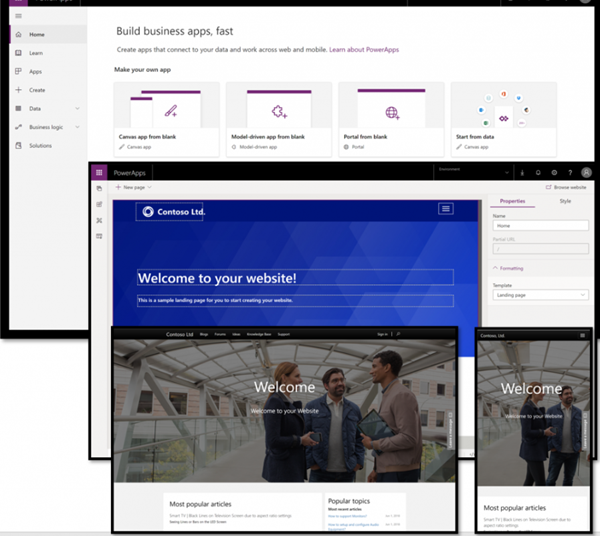
Currently I’m working on several COVID-19 apps for local authorities, to be able to help them assist people in need. As part of this, each local authority has a portal within the solution. The portal itself is a Power App Portal, and I haven’t really had exposure to them before.

blog.atwork.at | Hello, PowerApps Portals (and external users)!
Default portal view, not the one we implemented!

Installing a Power Apps Portal comes with quite a large number of solutions in order to get it to work. More on this below.

Due to the way in which we’re engaging with our clients, the solutions are built in a single tenancy (different environments, of course!). We’re then inviting the users in as guests through Azure Active Directory, to be able to access functionality etc. This works well – we don’t need to worry about managing user accounts, AAD permissions, etc. However it also means that we don’t have any Office 365 licenses within the environment itself.

Now we have workflows that are sending emails out around the portal – registrations, password resets, etc. These are being generated automatically by the system, but as there’s no Office 365 mailbox for the user, they’re queuing up.

It’s not possible to authenticate a mailbox belonging to an external user (we tried!), as the system needs a native (full) user with an active mailbox to be able to send out emails. This is of course unlike Power Automate, where you can create a Send Email action and use specified credentials for logging in to send an email.

So, we did what any normal system administrator/configurator would do. We opened up the relevant (managed) solution, and from there opened up the workflow that we needed to modify. Things looked normal at first – we deactivated the workflow, and started poking around it to see what made it tick.

We came across the part that actually took user credentials to send the email that was being generated, and modified this accordingly. Then we saved the workflow, which was successful. However, upon trying to then reactivate the workflow, we got the following error message (helpful, isn’t it!):

Nicely it gives the option to download the log file around the error. This can usually be quite helpful (at times), so we thought we’d take a look at it. Behold the following (I’ve had to shrink the screenshot to allow it to fit on the screen!):

Isn’t that ‘beautiful’. Don’t worry if you can’t actually make out the error information – none of it makes any sense, at least not in a practical sort of way.

Being stuck at this, I thought to reach out to one of the community Power App Portal champions, Mario Trueba. I’ve known him for a while, and he’s just simply amazing. Having asked if I could jump on a call with him for 15 minutes to diagnose (& hopefully find an answer!), we spent almost an hour!

He suggested trying to use the classic interface, as I had been doing all of this through the new UI. So off I went to open up Classic (I’ve missed this, I will freely admit). Through there, we opened up the solution, opened up the workflow, and re-activated it. Or not, as it happens – even through the Classic UI, we weren’t able to do so. We tried a variety of things, but to no avail. It just simply wasn’t happening!

I was slightly concerned that there was an underlying issues with Portals, perhaps from some legacy CafeX code. I had tried searching with Mario for error details contained within the log file, but we couldn’t find anything that would fix it.

The next morning on waking up & checking Twitter, I noticed someone tweeting around Portals, and engaged with them. They turned out to be on the Portals development team, and told me to shoot them over an email with the details, which I did. They then replied to me, saying that it wasn’t anything specific to Portals, and that I should raise a support ticket. That crossed one item off my list (a Portals issue), but I was still needing to get things resolved.

So I went off & raised a support ticket. A few hours later, a very nice tech support person called Siva gave me a call to discuss the issue. We hopped into Teams, and in what I can only describe as the SHORTEST period of time that I’ve ever experienced, the issue was resolved (it took 7 minutes in total. Yes, I know…). Don’t worry – I’m not going to leave you hanging here!

See, what the ‘issue’ (and I’m deliberately putting it in quotes) was turned out to be something quite simple, yet quite strange.

Essentially opening the workflow from the managed solution somehow (& I don’t know HOW) inherits the ‘managed’ property. This is whether we open it from the new UI, or the classic UI. As a result we’re able to deactivate it, but we CAN’T reactivate it due to the system thinking that we’re modifying a managed component (as an aside, it is interesting how I did manage to save it though?). This was what was causing things to fall over, and the error message was really not helpful at all.

It’s also not a matter of being a Microsoft (or ISV) managed solution. I’ve replicated this happening with a solution that I’ve built, exported as managed, & then imported.

So how did we do it? Well, there are two ways in which this can be dealt with:

Either we can go to System/Processes, find the workflow there, open it up, and then reactivate it:

Or we can open up the Default solution, navigate to processes, select the workflow, and then reactivate it:

Both methods work just fine, and as mentioned earlier on, I’ve since replicated this on workflows in other managed solutions.

To me, this is somewhat strange, and should work regardless. According to Siva, it’s the desired system behaviour, though I have no idea why someone should want it to work in one way, and not in another.

So if you’re reading this, and you might just happen to know someone in the necessary Microsoft engineering/development team who’d be able to answer this, could you point them my way? I’d love to engage them to find out why, how, and if they could pretty please change this?

Ramon Tebar on The Oops Factor

Finding out what Ramon misses about Spain, and the wonders that he’s discovered in London. If you’re ever in the mood for a stroll along South Bank, drop him a line!
Going into details around his background as a pure .Net developer, and what happened on a project for a contact that didn’t go through proper requirement gathering. Quite an interesting story.

If you’d like to come appear on the show, please sign up at http://bit.ly/2NqP5PV – I’d love to have you on it!

Click here to take a look at the other videos that are available to watch.

Ben Vollmer on The Oops Factor

Talking through Ben’s love of cars & sound systems (he has friends who have been on Pimp My Ride), how he actually really respond to long emails (and the outcomes from that), and what he really thinks of Outlook-reminder style app. Also touching on the important of empathy in the workplace, and getting better from mistakes.

If you’d like to come appear on the show, please sign up at http://bit.ly/2NqP5PV – I’d love to have you on it!

Click here to take a look at the other videos that are available to watch.

Matt Weston on The Oops Factor

Finding out from Matt as to how he got into vlogging (video blogging) to begin with, and the special test that he uses when explaining technology concepts. Matt shared with us about his special ‘love’ of Sharepoint content types with inheritance, how he occasionally does a spot of ‘pruning’ with Sharepoint forms, & the absolutely important of community!

If you’d like to come appear on the show, please sign up at http://bit.ly/2NqP5PV – I’d love to have you on it!

Click here to take a look at the other videos that are available to watch.

Iain Connolly on The Oops Factor

Talking with Iain about his gaming console selection & finding out about bulk-updating fields in Prod with the XRM Toolbox. Some UN-expected consequences, and a major cleanup operation that was needed!

If you’d like to come appear on the show, please sign up at http://bit.ly/2NqP5PV – I’d love to have you on it!

Click here to take a look at the other videos that are available to watch.

Benedikt Bergmann on The Oops Factor

Chatting about Benedikt’s love of bouldering & rock climbing, as well as why ALM is so important. We also discussed a project of his single client that had 9 Dynamics 365 organisations that needed to be deployed to, with nothing in place to automate this at all.

If you’d like to come appear on the show, please sign up at http://bit.ly/2NqP5PV – I’d love to have you on it!

Click here to take a look at the other videos that are available to watch.