Continual development in small steps

One of my resolutions for 2020 is to go out and get books to read, for self improvement – all in the name of getting better at stuff!

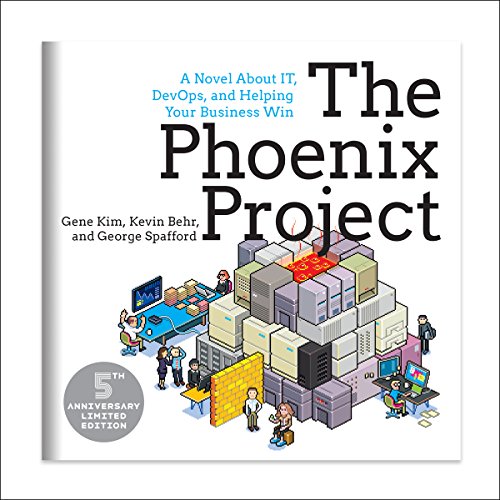
One of the books that I’ve read is The Phoenix Project (billed as a novel about IT, DevOps, and Helping Your Business Win). It’s been a real eye opener as to how we may currently go about projects, and what would be a much better approach. The thinking behind it is to look at how to best use DevOps.

Incidentally Tricia Sinclair has recently started talking about DevOps, and is REALLY knowledgeable on the subject. I’ve had many conversations with her, and her breadth of information and understanding is second to none. I’d really recommend that you go check out her blog at https://triciasinclair.com/.

There are several ideas/concepts that I’ve taken out of it. One of the main ones (as far as I’m concerned) is about continual improvement, and doing this in small steps.

It’s not about massive changes in life. It’s about identifying something (small) that can be changed/modified, and implementing a new regime around it, or a new way of doing it. This way you can train yourself into a new habit, which will take you forward. Once it’s settled in, pick something else, and then work on that.

The effect will be gradual, but it’ll be noticeable in being better at whatever it is that you’re addressing. It doesn’t just stop there though – improvement in ONE area has shown a noticeable marked improvement in OTHER areas as well across the board.

This concept doesn’t just apply to personal habits – it also applies to technology. Gone are the days (for most people!) when the next updates and/or items were released just in new product versions, or major updates.

Yes it’s true that there are two major releases each year for Dynamics and PowerPlatform (Spring/Fall), but the Microsoft Development Teams don’t work on items and then queue them all up for the major release.

Instead there are items that are released as soon as they’re ready (take a look at https://thecrm.ninja/required-fields-on-forms-what-did-you-forget-to-fill-in/ for an example of this). This is why you’ll be using the system, and suddenly notice that you don’t have as many steps to carry out, or something looks better and works faster, etc.

Every member of the team should feel that their input is valued, and able to be used – this will reinforce the team status. In the Toyota Way (see https://en.wikipedia.org/wiki/The_Toyota_Way for more information) quality takes precedence. Anyone at all, even a ‘lowly’ factor worker, is empowered to stop a production line when they’ve identified a problem.

One of the items in the ‘Toyota Way’ is called the ‘Toyota Kata’. This is a skill-building process to shift our mindset and habits from a natural tendency to jump to conclusions, to a tendency to think and work more scientifically. It’s not difficult to pick up, and recommendations are to practise it for only 10 minutes a day!

Everyone knows that making small improvements everyday is good and everyone wants to do that. But the following questions arise:

  • What to improve?
  • How to improve?
  • How will I know am improving?

The Toyota Kata comprises of 4 steps:

  • Plan. Draw up a list of things to do over the next period of time (one or two weeks). Establish objectives and processes required to deliver the desired results.
  • Do. Carry out the planned items. Small changes are usually tested, and data is gathered to see how effective the change is.
  • Check. The data and results gathered from the Do phase are evaluated. Data is compared to the expected outcomes to see any similarities and differences. The testing process is also evaluated to see if there were any changes from the original test created during the planning phase.
  • Act. This is where a process is improved upon. Records from the “Do” and “Check” phases help identify issues with the process. These issues may include problems, opportunities for improvement, inefficiencies and other issues that result in outcomes that are not optimal. The root causes of such issues are investigated, found and eliminated by modifying the process (as part of Plan in the next cycle).

Work in the next cycle Do phase should not create recurrence of the identified issues – if it does, then the previous action was not effective.

The most obvious manifestation of the Toyota Kata is the two-week improvement cycle at Toyota itself, in which every work centre supervisor must improve something (anything!) every two weeks. Mike Rother (who wrote the book for Toyota Kata) says ‘The practice of kata is the act of practising a pattern so it becomes second nature. In its day to day management, Toyota teaches a way of working—a kata—that has helped make it so successful over the last six decades.”

My resolve is to do this – not only on my personal items, not only in my work environment, but also with the clients that I work with.

Let’s go out there and use this to make things better for everyone. Let’s challenge our clients and see how this can enable and empower them? Sounds crazy, right – but it could actually bring a massive benefit to project/s. Sit down with the business team/s, and get them to identify one point (that’s not too big) that can be (quickly) worked on (try using the 80/20 rule). Do the work on it, release it, and then get them to do it again. See the results and benefit from it!

Note: Don’t get them to build too much of a backlog around this, as release items may cause one or more of the backlog items to be non-relevant anymore!

You could even get managers to give a reward for coming up with ideas around this concept that have a major noticeable effect on productivity etc.

By bringing these concepts together, our clients (along with ourselves) can better understand what’s happening, bring better suggestions to the table in order to build better systems, and a much higher working co-efficient will evolve, empowering everyone!

Omnichannel for Dynamics 365 – Chat Transcripts

We’ve all been there (well, at least I have). We’ve been having an online chat with a customer service person at a company, and we’re wanting to have a record of the actual chat that took place. Of course we could (hopefully) copy and paste the entire conversation into a document and save it, but that would be laborious, and also potentially not be legal proof of the actual conversation.

In some cases, companies may actually encourage customers to save a record of their chat history on their account (as an example, Amazon offers this at the end of each chat). Customers can then return at a later date to download the conversation to their own computer at their leisure, which can be more convenient at times (say you’re travelling on holiday, and don’t have your own computer with you!). It could even be possible to get it automatically emailed to your own email address, which would also allow a company to add additional information to it (for example a feedback survey request on your chat experience, some marketing information, etc)

Well, Omnichannel has the ability for this, in multiple ways! It can allow a user to:

  1. Download a full transcript at the end of the chat
  2. Email a full copy of the chat transcript

Both of these features are available from the chat window using icons, allowing a quick and easy experience for the users. You can decide if you want to allow one or the other, or both, quite easily.

Enabling this is quite simple, though there are some additional options to set for the auto-emailing feature (basically selecting the email template and user mailbox – you can set up a specific mailbox to use if you’re wanting it eg ‘customerservice@abc.xyz’).

In the Omnichannel Administration Hub, open the Chat channel that you’re wanting to enable this for. Under the ‘Chat Transcripts’ section, select the option/s that you’re wanting to enable:

Downloading the chat transcript

At any time during the chat conversation, users can click the download icon at the bottom left of the chat window, and the conversation will be downloaded to their default Downloads folder on their computer.

This saves as an HTML file, and when opened looks like this:

At the end of the chat, the person will be prompted and asked if they’d like to save the conversation, with quick instructions as to how to do so. Obviously this option will ensure that the customer has the complete conversation, rather than just a part of it, so this reminder is really nice and helpful in my opinion

Emailing the chat transcript

Customers can also get the chat transcript auto-emailed to their email address. Clicking the email icon will prompt the customer to enter their own email address (or whichever email they’d like the chat transcript to be sent to).

This option allows companies to be able to format the email template that’s used for this. Examples of things that a company might want to do could include:

  • Using company logo’s, images and fonts
  • Feedback survey information, to understand how the customer felt about the chat session
  • Marketing material for upcoming events

Note: When setting up the ability for chat transcripts to be emailed, don’t forget to approve and test the mailbox being used in the Email Configuration settings! If you don’t do this (or it hasn’t already been done), they won’t be emailed out!

There’s also one further piece of configuration that needs to be carried out for emailing chat transcripts. As all emails from that chat channel will be using the same email address to send out the emails, this means that the ‘Allow send on behalf of’ option must be selected on the mailbox user’s personal settings. You’ll therefore need to log into Dynamics as the mailbox user, open personal options, and set this manually

In summary, this is really helpful to customers, and a great little feature for Omnichannel.

Jon Levesque on The Oops Factor

Speaking with ‘The Power Automate Guy’ himself!

Touching on important points such as drones, the renaming of ‘Flow’ to ‘Power Automate’, and being yourself within a role.

If you’d like to come appear on the show, please sign up at http://bit.ly/2NqP5PV – I’d love to have you on it!

Click here to take a look at the other videos that are available to watch.

How to handle error AADSTS65001 when trying to configure Omnichannel for Dynamics 365

I’ve been contacted by several people over the last few days who have been experiencing an error when trying to get Omnichannel configured. It looks something like:

The actual text of the error is: AADSTS65001: The user or administrator has not consented to use the application with ID ’18cc9627-776c-4142-b8f5-9cd83517e3bb’ named ‘Omnichannel for Customer Service’. Send an interactive authorization request for this user and resource. Trace ID: 36dd2358-2d41-463c-a2f6-013038636400 Correlation ID: 9ac093cd-e525-4bb4-b277-3ac8e7478b6b Timestamp: 2020-01-07 12:14:15Z

No matter what people tried, they still got it. I went through the process of setting up a completely new environment – lo and behold, I got the same issue! (the screenshot above is actually from my system). Incidentally this is why it’s so important to be able to replicate an issue, so that you can confirm what’s actually causing it to happen.

Reaching out to some very helpful people at Microsoft, I (thankfully) got a quick response from them

Essentially, there are some issues with Azure Active Directory (AAD) consent flows for applications at the moment (it’s not specific to Omnichannel). There’s a fix that’s being worked on, but no idea when it will be finished and rolled out.

They were nice enough to share with me how to address it, which is what I’m now sharing here! To fix this issue, carry out the following steps to manually grant permissions to the application:

1. In your Azure Portal, search for ‘Azure Active Directory’ in the search bar, click on it when it comes up, and navigate to Enterprise Applications in the left hand bar. Alternatively you can use https://ms.portal.azure.com/#blade/Microsoft_AAD_IAM/StartboardApplicationsMenuBlade/AllApps/menuId/to get you straight there.

Click it to open, and you’ll see a list of the enterprise applications that use AAD.

2. You’ll then want to search for the application that has the issue (in this case, Omnichannel)

You’ll want to double-check that the ‘Application ID’ is the SAME as the Application ID that you’re getting in the error message, especially if there are multiple results coming up in the search list!

Once you’re sure that it’s the correct application, click it to open it.

3. You’ll see a section in the left bar called ‘Security’, and under this should be an entry for ‘Permissions’. When this opens, you’ll see a button in the main window called ‘Grant admin consent for User‘.

4. Click this – it’ll cause a window to pop up, where you’ll grant permissions for the application. Once granted, the window will automatically close.

You can then go back to the place where you were experiencing the error, and it should work!

Akhilesh Dubey on The Oops Factor

Talking about how running can help with things, interesting sights seen during some of the runs, managing expectations for system migrations with new fields, and the importance of involving the key business unit users as early as possible during the project process!

If you’d like to come appear on the show, please sign up at http://bit.ly/2NqP5PV – I’d love to have you on it!

Click here to take a look at the other videos that are available to watch.

Required fields on forms – what did you forget to fill in?

Well, somewhat of a mouthful of a title for this article, but I couldn’t think of a better way to put it!

You know the scenario – we’ve all been there. There’s a custom form (for a system entity, or even a custom entity). Multiple sections, tabs, and multiple fields that are required. Users are going through data entry, but SOMEHOW have forgotten to fill one (or more???) in, and they’re just not able to save the form!

Well, Microsoft has now upped the quality of the user experience, and OH BOY was I SO excited to see this!

Previously when you clicked the Save button, it just wouldn’t allow you to save. It told you that it was missing required information, and you had to go search to see WHICH field(s) you had missed out on.

But search no longer. For now the notification bar has a whole new behaviour:

Firstly, it tells you that there are notifications, and to select to view (Note: If you’ve only missed out one field, just skip to step 2!)

Then when you click on it, it tells you which (required) fields have data missing from them!

Even better, if you click on the notification for a specific missing field, it even takes you to that field – no longer do you have to try to find where it is!

This is truly amazing, and will help enable users (and relieve their frustration) so much!

Omnichannel for Dynamics 365 – Skills Part III

The previous post in this mini series looked at how we go about enabling skill-based routing (https://thecrm.ninja/omnichannel-for-dynamics-365-skills-part-ii/).

What we’re now going to do is understand how we go about attaching skills (which we’ve already learned how to set up) to conversations. The premise behind this is that when a customer will access Chat on a website interface, they’ll be presented with one (or more) pre-chat survey questions. The answer/s that are given are then used as skills, and the chat session will be automatically routed to the user who is best placed to help the customer. This is done based on the skill-attachment rules, which we’re now looking at.

There are two types of options available for skill matching:

  1. Exact skill matching. The skill attachment logic looks for the exact skill/s and proficiency level that an agent should have to work on the conversation (and uses this as the minimum criteria). Then it searches for an available agent with these, to route the conversation to. If the minimum criteria aren’t met, then it searches for a higher proficient level. If no agent with a higher proficient level is found, then the conversation remains in the queue
  2. Closest skill matching. This initially works the same as the exact skill matching. The system will identify the skill/s and minimum proficiency levels, and see if there’s an agent available. If not, it’ll search for a higher proficiency level. All the same so far. But if there are no agents matching (or having a higher) proficiency level, it will look for any agents that are available with a lower proficiency level, and route the conversation to them

To create a new skill attachment rule, you’ll need to create (or modify an existing) workstream (we’re going to look at workstreams in another post)

Go to Skill Attachment Rules, select the type of matching logic that you’re wanting, and create a new rule (assuming you’re not modifying an existing one)

In the new rule window that opens, fill in the necessary information on the left hand side. You can then start to set up your rule conditions (and oh boy can these be complicated!) in the Condition box on the right.

Once done, hit the Save button, and the Skills section box will become active. Clicking the ‘New Attach Skill’ button in this box will allow you to select the skill/s and proficiency levels that you’re wanting to use.

Click the ‘Save and Close’ button, and it’ll appear in the Skills box. If you’re wanting to add more than one skill at a time, click the arrow on the Save & Close button, and click the ‘Save and New’ option.

If you then go back to the Workstream record, you’ll need see this appearing in the Skills Attachment Rules section.

Jason Almeida on The Oops Factor

Jason Almeida comes on The Oops Factor, and talks about a somewhat different hobby, along with how he’s been using the PowerPlatform to help with it! We then discuss the importance of communication, and the benefits that it brings.

If you’d like to come appear on the show, please sign up at http://bit.ly/2NqP5PV – I’d love to have you on it!

Click here to take a look at the other videos that are available to watch.

Omnichannel for Dynamics 365 – Skills Part I

We’ve already gone through and taken a look as to how we set up Queues (https://thecrm.ninja/omnichannel-for-dynamics-365-queues/) and Users (https://thecrm.ninja/omnichannel-for-dynamics-365-users/). The final part of this trio is looking at how we set up Skills in Omnichannel, and apply them (which is going to be in several parts, due to the complexity of this one item!)

As we’ve previously covered (https://thecrm.ninja/omnichannel-for-dynamics-365-queues-users-skills/), skills are used within Omnichannel to enable Skill-Based Routing.

There are several parts to getting this working:

  1. Setting up the actual skill entries
  2. Enabling/configuring skill-based routing
  3. Enabling/configuring the ability for chats to utilise skill-based routing

Yup – it’s somewhat more complex than just saying ‘I want skills!’

So this post is going to cover how to actually set up the skill record entries, which thankfully isn’t too difficult (especially if you’ve been bearing with me, and following the other setup instructions that we’ve been through so far).

To create skills, it’s necessary to have a skill type. Think of it as a hierarchy – if you’re wanting to provide customer services in multiple languages for technical issues, you’re going to want a Language skill type, and Technical skill type. Under each skill type, you’re going to have the applicable entries. So for Language, you’ll have English, Spanish, Chinese, etc.

At the time of writing, creating Skill Types are done from the Systems Customisation (this will likely move to the new Admin Centre at some point, but hasn’t yet). So make sure that you’re logged in as a Dynamics system Administrator, and open Advanced Settings:

Note: The process below is taking place in the default solution. It’s of course possible to deploy this as part of a custom solution – if you’re wanting to do this, then open the custom solution from the Power Platform admin centre, and continue with the steps shown below.

Hover over ‘Settings’ in the ribbon menu bar, and choose Customisations

Now select ‘Customise the System’

Select ‘Option Sets’ in the left hand navigation, then scroll down to ‘Bookable Resource Characteristic Type’ in the main window

Open up, and you’ll see the following window

Using our scenario, I’ve added Language and Technical Area as skill types. Now very importantly, ensure that you SAVE the record, and then PUBLISH it. If you don’t, the skill types won’t show to be used!

Right, now that we’ve done all of that prep work, we can get on with actually entering the skills that we want to use…

So, go back to the Omnichannel Administration section, scroll down in the left hand menu to Skills, and click it to open it. It’ll show all of the skills that we’ve entered (well, it won’t show any entries here yet, as none have been put in yet!). Click ‘New’ on the menu ribbon to create a new entry

You’ll be presented with the following screen, which after all of the above is thankfully quite simple.

The fields are as follows:

  • Name. What it says on the field – nothing complicated. It does need to be unique though, so have a careful think about your needs. You can always use multiple skills together to create a blend that you need across skills
  • Type. This is the Skill type (which we’ve just set up beforehand). If you don’t see the values that you’ve set up in here, make sure that you saved and published the customisations!
  • Description. Put something user-friendly in here to describe what the skill is (if you think it’s necessary…)

Then click ‘Save’ on the menu bar. Once the entry saves, the form will update, and now show a User (Agent) section:

You can now add users (agents, as they’re referred to) to the skill. Click the ellipse on the right hand side of the Users (Agents) grid, and then select the ‘New Bookable Resource Characteristic’ option (the names of these things just keep on getting longer and longer, don’t they!)

A nice simple window will open on the right of the screen, where you can enter the details:

This is done as follows:

  • Skill Value – this is the skill that you’re wanting to assign a user to
  • User (Agent) – this is the actual user. You can type to search through the available users. Very important to note that if you didn’t follow the steps to set up the user as a Bookable Resource, you won’t see them in this list (see https://thecrm.ninja/omnichannel-for-dynamics-365-users/ for instructions on how to do this)
  • Rating Value – this is used to rate the proficiency of the user at the skill. We’ll cover setting this up in a later post, but essentially think of using a 5 star scale. 1 would mean the user has basic ability at the skill, 3 would mean they’re alright with the skill, and 5 means that they’re at the top of their game with it

You can then click the ‘Save and Close’ button at the bottom of the window, and it’ll add them.

However if you have multiple users that you’re wanting to add, I’d HIGHLY recommend clicking the arrow next to this button, and selecting the ‘Save and Create New’ option. It’s not just to create with the same skill – you can change the Skill Value as well, and it’ll save you more clicks!

Hopefully you’re still following along, and managing to get the setup done correctly – well done!

Up next – enabling skill based routing( https://thecrm.ninja/omnichannel-for-dynamics-365-skills-part-ii/)

Dilyana Radulova on The Oops Factor

Talking with Dilyana Radulova on The Oops Factor about some quite interesting hobbies, and then going into discussions about confidence and over-confidence, and how this can impact projects.

Also a suggestion for another hashtag that can be used!

If you’d like to come appear on the show, please sign up at http://bit.ly/2NqP5PV – I’d love to have you on it!

Click here to take a look at the other videos that are available to watch.