Omnichannel – Wave 1 2020

A week ago, the release notes for Wave 1 2020 come out, covering both Dynamics 365 ( https://docs.microsoft.com/en-gb/dynamics365-release-plan/2020wave1/) and the Power Platform ( https://docs.microsoft.com/en-gb/power-platform-release-plan/2020wave1/). Well, people have been VERY eagerly waiting for these, and my news feeds started to blow up with people commenting on the new features that are coming out.

I’ve been very carefully reading through them to see what’s applicable for Omnichannel, as well as researching other sources. The great news is that there’s some really cool stuff that’s going to be released within this (or before!) for Omnichannel – to date we’ve had a good start as a baseline for the product, and this is going to enhance it further (obviously there are going to be continual developments, and it’s really reassuring to see the effort that Microsoft are putting in to this to get it right).

Incidentally, this is how Microsoft actually talk about Omnichannel within the release notes:

A true omnichannel experience in the product will preserve context and provide a continuous experience as customers seamlessly switch across self-service, peer-to-peer service, and assisted-service channels. An empowered agent experience will provide an application experience that is unified across channels and line-of-business (LOB) applications, is contextual to the engagement, and comes with productivity tools to resolve issues faster

So, without further ado, here we go! (I’m including the dates that are applicable to each item for reference)

Digital messaging support for Microsoft Teams

Public Preview – April 2020. No current date for GA release

Companies that are already using Teams for communications will be able to use it for internal support delivery, thereby reducing the number the tools that the business needs to manage. This will allow employees to raise items internally through Teams, which will feed through to teams using Omnichannel for internal company purposes.

  • The Teams channel will be able to be configured through the Omnichannel Administration Hub
  • Employees can get support using Teams
  • Agents (the internal support team/s) will be able to use the Omnichannel for Customer Service Hub to answer and serve the employees
  • Reports can be run on these interactions to help enable the support centre/s to be run effectively and efficiently.

Digital messaging support for Whatsapp (Twilio)

Public Preview – April 2020. No current date for GA release

The communication methods will expand to include the ability to have communications through WhatsApp Messenger. This is a widely used mobile app throughout the world, and people will be able to use it to contact companies directly

  • The WhatsApp channel will be able to be added & configured in the Omnichannel Administration Hub
  • Support agents will access and serve customers through the Omnichannel for Customer Service Hub

Digital messaging support for LINE

Image result for line software"

GA – April 2020

Businesses will be able to add a communication channel for LINE communications (see https://en.wikipedia.org/wiki/Line_(software) for further information about LINE).

  • The LINE channel will be able to be added & configured in the Omnichannel Administration Hub
  • Support agents will access and serve customers through the Omnichannel for Customer Service Hub

Digital messaging support for SMS (Twilio)

Image result for sms"

GA – April 2020

Currently Omnichannel support SMS through Telesign. Wave 1 will include additional capabilities to access SMS through Twilio. Customers will require a Telio SMS subscription to leverage this.

  • The SMS channel will be able to be added & configured in the Omnichannel Administration Hub, using Twilio as a provider
  • Support agents will access and serve customers through the Omnichannel for Customer Service Hub

Digital messaging support for WeChat

Image result for WeChat"

GA – April 2020

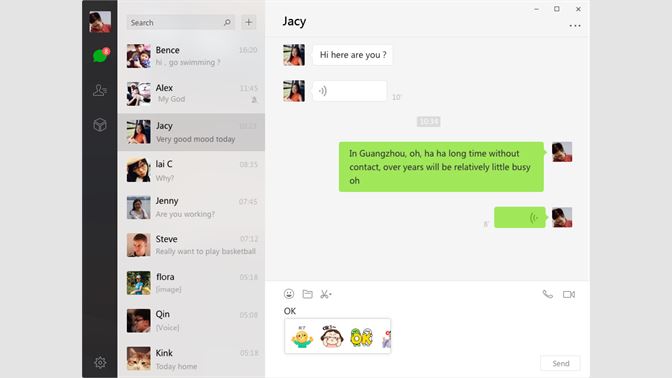
Any company that has business in China will be aware of WeChat. It’s similar to WhatsApp Messenger, through with admittedly greater capabilities (people can pay for goods using WeChat, transfer money, and carry out a variety of other tasks).

This release will add native WeChat capabilities for Omnichannel, which will be of major benefit to companies that have Chinese clients.

  • The WeChat channel will be able to be added & configured in the Omnichannel Administration Hub
  • Support agents will access and serve customers through the Omnichannel for Customer Service Hub

Digital messaging support for Twitter

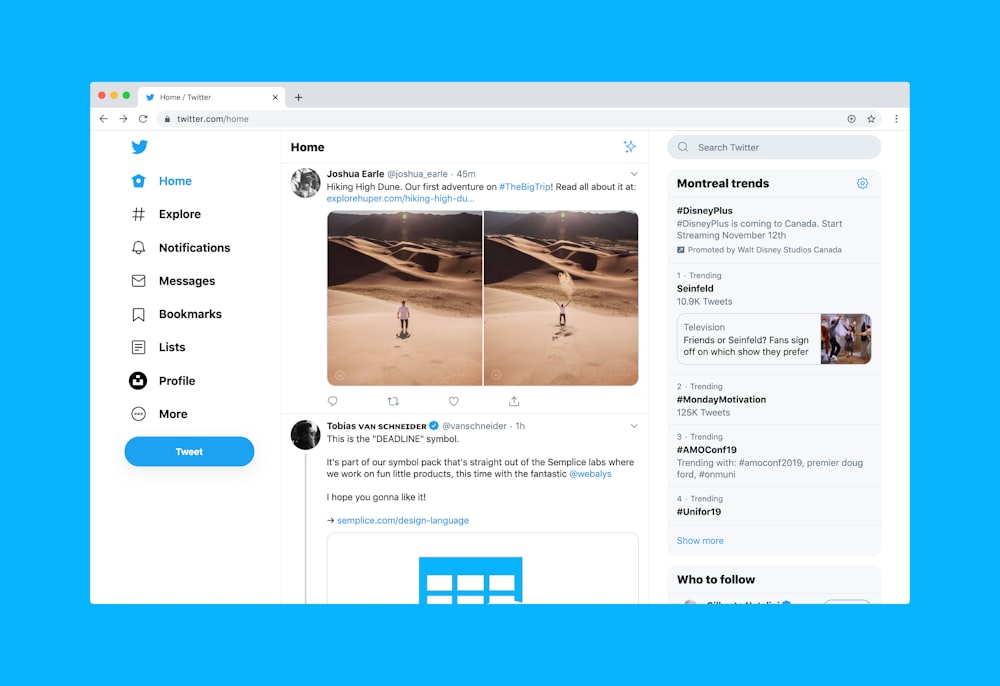
Twitter website on desktop

GA – April 2020

Wave 1 will allow customers to engage with companies through Twitter, using Twitter Direct Message (DM’s). The end-user experience will be directly through Twitter, whilst the agent experience will be using Omnichannel

  • The Twitter Direct Message channel will be able to be added & configured in the Omnichannel Administration Hub
  • Support agents will access and serve customers through the Omnichannel for Customer Service Hub

Raise live chat conversations to a voice/video call

GA – April 2020

Expanded channel choices will allow customers to raise a conversation from the live chat experience to a voice/video call. This in turn will allow queries to be expedited and resolved in less time, as well as allowing agents to better understand what the customer is trying to achieve, and creating a more personal interaction with the customer.

  • Chats will be able to be configured in the Omnichannel Administration Hub to enable the elevation of the chat to voice and/or video
  • Agents will be able to elevate a text chat to a voice and/or video conversation during a support session
  • Common audio & video controls to be available for agents (eg camera on/off, mute/unmute)

Co-browse capabilities through 3rd party providers

Public Preview – January 2020. GA – April 2020

One of the most frustrating things about providing support to someone is that occasionally you wish you could actually see their screen, just to understand what the customer is actually doing! Well, this is coming to Omnichannel!

Agents can better help customers when customers can show agents what’s happening on their device. In this release, API & related artifacts are being provided that will allow partners to integrate existing 3rd party co-browse solutions. There are already several partners working together with Microsoft to get this out there, and I’m sure that there will be more over time.

Remote assistance capabilities through 3rd party providers

Public Preview – January 2020. GA – April 2020

Following on from the item about regarding co-browsing, the next logical step is to be able to have a support agent accessing a device to address an issue, rather than trying to walk the customer through what could be some quite technical steps.

In this release, API & related artifacts are being provided that will allow partners to integrate existing 3rd party co-browse solutions. There are already several partners working together with Microsoft to integrate their products with Omnichannel

All in all, I’d say that the above capabilities that will be coming to Omnichannel are really encouraging, and I can’t wait to play (and talk through) them! I’m also starting to wonder what goodies will be dropping for Wave 2!

Quick Responses in Omnichannel

We’ve all had these types of scenarios. You know, when you’re needing to type the same response (or similar ones) time and time and time again to customers. Or alternatively queries can be grouped together under different topics, and you just wish there was a way to quickly and easily answer these, rather than manually answering each customer.

Thankfully, there is indeed such functionality within Omnichannel! No longer do you need to type out general responses (or indeed custom responses) each and every time that a customer requests some information about something, or when helping them out.

In Omnichannel, these are called ‘Quick Responses’, and are really incredibly easy to use.

As a default, the system ships with some quick responses already loaded in, and available to use. This covers usual circumstances such as ‘Hello, how may I assist you?’, ‘Your patience is appreciated. I will be with you shortly’, and also ‘This chat service is permission based. Before a chat begins, no data is collected about you beyond the information which websites usually collect. Once an invitation is accepted, all chats are monitored for quality assurance purposes. Any information gathered is for internal use only.’

In fact, not only are these pre-loaded in English, they’re actually pre-loaded in 23 other languages as well! (at the time of writing, that is – I’m sure there will be more to come)

Now these are all very well and good for generic customer service. What makes this really cool though is that you can create your own ones, and then use them.

Setting them up is really simple and straightforward. Make sure that you’re in the Omnichannel Administration Hub, scroll down in the left side navigation bar to ‘Quick Replies’ (in the ‘Agent Experience’ section), click it, and then click the ‘New’ button on menu ribbon bar:

Give the record a title to identify it by, select a local, and then enter the message that you’re wanting to use:

Now all the agent needs to do in the chat window is use the ‘/q’ command (without the quotation characters, of course). Typing this will bring up the Quick Response window in the chat session.

The agent can then type in a keyword, and the list of available quick replies will be filtered to just those that have the keyword in it:

Note that due to the way in which Omnichannel works, it can sometimes take a little time before the new Quick Reply entries will appear for the agent to use in the chat interface

Clicking on the line that they want to use will then populate the text from that quick reply into the chat window. The agent can modify it if they want to, and then send it to the customer:

This is a really helpful feature, and can assist greatly in speedier responses to customers, as well as cutting down on the time needed for interactions!

Microsoft and the Not-For-Profit Sector

This is a slightly different post to the ones that I usually do, for a number of reasons. Firstly, it’s something that I’ve been wanting to do a post on for a while. Secondly, the release notes for Wave 1 2020 drops today, and I’m obviously wanting to do a write-up on the details from it as soon as I can!

So, the Not For Profit (NFP) sector. Well, organisations within this sector can vary, of course. There are classic examples such as Greenpeace and the National Trust (for those people outside of the UK, take a look at http://www.nationaltrust.org.uk/ for more information on what this is, and what it does.

There are also many other examples, namely charities. Now there are a great many types of charities, ranging from the Great Ormond Street Children’s Charity (Great Ormond Street Hospital, or GOSH as it’s known for short, as a world-renowned children’s hospital based in London, UK) to local small community charities.

Where am I going with all of this? Well, it’s quite simple actually. Microsoft provides low cost access to their software and offerings, as well as some free items as well. In fact it’s incredible how extensive this can be! (there are of course other organisations that provide similar offerings too, which shouldn’t be forgotten).

As part of my involvement in my local community, I’m the IT administrator for several community charities/organisations (yes – I’m the one they call to reset their password when they’ve forgotten it!!). In my role for them, I’ve used Microsoft offerings such as Office 365, as well as PowerPlatform apps sitting on the CDS to get things working more efficiently.

I had known for a while about the discounted software offerings that were available, such as Office (desktop & cloud versions) and other software.

There’s a global company called Techsoup (https://www.techsoup.org/) who’s mission is to build a dynamic bridge that enables civil society organisations and social change agents around the world to gain effective access to the resources they need to design and implement technology solutions for a more equitable planet. Companies such as Microsoft partner with Techsoup, and once a charity is qualified and confirmed by Techsoup as meeting all of the necessary criteria, they can sign up for and purchase software. It’s really amazing to see the extensive catalogue available, and can really help the smaller organisations (who otherwise would be paying a lot for software licensing).

However, Microsoft takes this to another level. There’s a specific Microsoft NFP website (https://nonprofit.microsoft.com/) at which NFP organisations can sign up for, to gain access to resources that they wouldn’t necessarily find elsewhere.

Microsoft states there that ‘Microsoft is dedicated to making the benefits of world-class cloud technology accessible and affordable for nonprofits. We offer discounted and donated industry-leading solutions for nonprofits.’

There are currently 5 areas that are offered against:

  • Productivity Applications – this covers Office 365, Dynamics 365 & PowerBI
  • Azure credits – there’s an annual credit available for $3,500
  • Hardware – devices such as the Surface that are available to purchase at a discounted rate
  • LinkedIn for nonprofits – a greatly reduced subscription rate available, along with working directly with the LinkedIn team for fundraising and marketing solutions to drive relationships and awareness of the mission at scale
  • GitHub for nonprofits – including eligibility for a Team account with unlimited private repositories and unlimited users

This is all really great and amazing. What’s even more amazing is that there’s special licensing available around things like Dynamics 365 & the Power Platform, where I’ve been seeing so much growth recently in.

NFP organisations knowing about all of these things could then work forward to use the technology to enable & empower them (yes, this is sort of a catchphrase of me, I know…). They could do this either themselves, with their existing IT people, or super/power users who understand technology. These people could quite easily start learning the skills to use such tools as PowerBI, PowerApps, etc, and see how they could bring the technology to the best usage cases for the organisation.

Alternatively, they could partner (if they’re not doing so already, of course) with implementation providers who specialise in the NFP sector. In the UK, one of the main ones in the Microsoft solutions space is m-hance (https://m-hance.com/). They are well known within the UK for their attention to detail, and their passion for the NFP sector.

Note: For sake of clarity, I have not/do not work for/with m-hance, nor gain anything from any work that they carry out, nor from any company that may wish to engage with them from having read this post

I also personally know one of the people who work there – Mike Hartley (oh yes Mike, I am indeed mentioning you on my blog!). I’ve known Mike for a while now, and he’s one of the most passionate people that I’ve met within the Microsoft communities. I’ve chatted with him one-on-one around both technical and non-technical concepts, and have always been really impressed with how he approaches things. I’ve also attended sessions that he’s presented on, and always walked out with new ideas in mind! He’s just one example of the way in which passion and drive can really TRULY help with social and community items – we’re not even talking major scale, but rather on a local scale to help the people around us.

I have spoken to several organisations that have benefited greatly through services from Microsoft partners who work in this space, and heard how incredible the journey has been. It’s really a wonder to see their technological journey, and see how they’re making people’s lives better, one day at a time.

So….if you work in a charity, or know a charity that you think might benefit from this – speak to your company, mention this to them, and spread the word. One of the concepts that I try to practice daily is the concept of ‘pay it forward’ – do/help someone else, not because you’re wanting them to then do something for you, but altruistically. This can have an immeasurable effect over time!

Looking back at Dynamics in the mid 2000’s

The last week has been somewhat hectic – I was at Ignite for 2 days, started on a mentorship program (as a participant), and have been investigating some of the new functionality for Omnichannel, etc.

As a result, I’ve decided to post a video that I came across a little while back. It’s from the mid-2000’s, and takes place with Satya Nadella, who at the time was the CVP (Corporate Vice President) of the Dynamics team.

Nowadays the Dynamics and PowerPlatform space is just so large, both in terms of breadth as well as depth, that it’s almost unbelievable. At the time of writing this post there are over 30 ‘First Party’ apps – I remember when there was only one!

When watching this video, I can see the beginning of how Microsoft was planning on invigorating & expanding the Business Application side of the company, along with how important and key it was being envisioned to be at the time (and still is, of course)

Now Satya is the CEO of Microsoft, and offerings such as the Power Platform have had billions of dollars invested in them over the last few years. It’s really incredible how far things have come over the last 15 years…and who knows how they’ll continue to develop!

Omnichannel for Dynamics 365 – Chat Transcripts

We’ve all been there (well, at least I have). We’ve been having an online chat with a customer service person at a company, and we’re wanting to have a record of the actual chat that took place. Of course we could (hopefully) copy and paste the entire conversation into a document and save it, but that would be laborious, and also potentially not be legal proof of the actual conversation.

In some cases, companies may actually encourage customers to save a record of their chat history on their account (as an example, Amazon offers this at the end of each chat). Customers can then return at a later date to download the conversation to their own computer at their leisure, which can be more convenient at times (say you’re travelling on holiday, and don’t have your own computer with you!). It could even be possible to get it automatically emailed to your own email address, which would also allow a company to add additional information to it (for example a feedback survey request on your chat experience, some marketing information, etc)

Well, Omnichannel has the ability for this, in multiple ways! It can allow a user to:

  1. Download a full transcript at the end of the chat
  2. Email a full copy of the chat transcript

Both of these features are available from the chat window using icons, allowing a quick and easy experience for the users. You can decide if you want to allow one or the other, or both, quite easily.

Enabling this is quite simple, though there are some additional options to set for the auto-emailing feature (basically selecting the email template and user mailbox – you can set up a specific mailbox to use if you’re wanting it eg ‘customerservice@abc.xyz’).

In the Omnichannel Administration Hub, open the Chat channel that you’re wanting to enable this for. Under the ‘Chat Transcripts’ section, select the option/s that you’re wanting to enable:

Downloading the chat transcript

At any time during the chat conversation, users can click the download icon at the bottom left of the chat window, and the conversation will be downloaded to their default Downloads folder on their computer.

This saves as an HTML file, and when opened looks like this:

At the end of the chat, the person will be prompted and asked if they’d like to save the conversation, with quick instructions as to how to do so. Obviously this option will ensure that the customer has the complete conversation, rather than just a part of it, so this reminder is really nice and helpful in my opinion

Emailing the chat transcript

Customers can also get the chat transcript auto-emailed to their email address. Clicking the email icon will prompt the customer to enter their own email address (or whichever email they’d like the chat transcript to be sent to).

This option allows companies to be able to format the email template that’s used for this. Examples of things that a company might want to do could include:

  • Using company logo’s, images and fonts
  • Feedback survey information, to understand how the customer felt about the chat session
  • Marketing material for upcoming events

Note: When setting up the ability for chat transcripts to be emailed, don’t forget to approve and test the mailbox being used in the Email Configuration settings! If you don’t do this (or it hasn’t already been done), they won’t be emailed out!

There’s also one further piece of configuration that needs to be carried out for emailing chat transcripts. As all emails from that chat channel will be using the same email address to send out the emails, this means that the ‘Allow send on behalf of’ option must be selected on the mailbox user’s personal settings. You’ll therefore need to log into Dynamics as the mailbox user, open personal options, and set this manually

In summary, this is really helpful to customers, and a great little feature for Omnichannel.

Proactive chat in Omnichannel for Dynamics 365

We’ve all been there. We’re on a website page, trying to understand it, and not really getting anywhere. Whether it’s about how to fill in a form, or technical instructions and information, our mind has gone blank. The words are on the page, but they’re just not making sense – and we don’t know what to do!

What would we say if suddenly a prompt came up, asking if we needed some help with understanding things, and offering to connect us with a live agent if we wanted some assistance? Well, quite a lot of people would be grateful for that, I’d think.

There are quite a few websites out there that have this functionality – I know that I’ve seen it on various sites I’ve been on, though it’s not always been implemented in the best of ways.

Well, now Microsoft have decided to bring in their own form of it, and it sits right within Omnichannel for Dynamics 365! It’s able to allow customers to interact either with a bot or with a live agent, depending on how you’ve configured it to work.

Currently it’s in Preview, but I’m expecting it to move to General Availability soon.

Even better, Microsoft have even released a short video around it!

There are two parts to configuring it:

Firstly, you need to enable Proactive Chat. Go to your Chat channels under Omnichannel Administration, open up the Chat record you’re wanting to have Proactive chat enabled for, and change the ‘Enable Proactive Chat’ option to Yes (obviously if you don’t have any chat channels set up, you’d need to create a new one)

Secondly, there’s some code that needs to be embedded on the actual web-page that the chat is active on. Now I know what some of you are thinking – ‘how the heck do I code’? (OK – so the developers aren’t thinking that – they’re thinking ‘oh goodie!!’. Well, I’m not from a development background myself, but I managed to get it to work quite easily. Take a look at https://docs.microsoft.com/en-us/dynamics365/omnichannel/developer/how-to/start-proactive-chat , where several different scenarios are shown (along with sample code), and you can tweak these as required.

The result then looks like:

This is really helpful. I can then click the ‘Chat Now’ button to start the chat. What I’m also really liking about the experience is that the chat option/window floats on the bottom right side of the screen, so no matter where I am in the page, it’s available (and easily able to be seen)

There are many different ways in which this can be configured. Some of the immediate ones that come to mind (but by no means all of them) are:

  • Someone staying on a webpage for a long period of time
  • Someone who keeps coming back to the same page (perhaps they’re lost, and not able to find what they’re looking for)
  • Someone on a support portal looking at a support case, and wanting to see more information on it
  • Someone coming from a specific webpage to another page
  • Someone accessing the webpage from a specific location (eg country) in the world
  • Special offers being available during a specific time-frame, and only website visitors during that time get the option for the special offers

It’s a really helpful addition to the current Omnichannel capabilities, and I’m sure that there will be many more to come!

Omnichannel for Dynamics 365 – Skills Part I

We’ve already gone through and taken a look as to how we set up Queues (https://thecrm.ninja/omnichannel-for-dynamics-365-queues/) and Users (https://thecrm.ninja/omnichannel-for-dynamics-365-users/). The final part of this trio is looking at how we set up Skills in Omnichannel, and apply them (which is going to be in several parts, due to the complexity of this one item!)

As we’ve previously covered (https://thecrm.ninja/omnichannel-for-dynamics-365-queues-users-skills/), skills are used within Omnichannel to enable Skill-Based Routing.

There are several parts to getting this working:

  1. Setting up the actual skill entries
  2. Enabling/configuring skill-based routing
  3. Enabling/configuring the ability for chats to utilise skill-based routing

Yup – it’s somewhat more complex than just saying ‘I want skills!’

So this post is going to cover how to actually set up the skill record entries, which thankfully isn’t too difficult (especially if you’ve been bearing with me, and following the other setup instructions that we’ve been through so far).

To create skills, it’s necessary to have a skill type. Think of it as a hierarchy – if you’re wanting to provide customer services in multiple languages for technical issues, you’re going to want a Language skill type, and Technical skill type. Under each skill type, you’re going to have the applicable entries. So for Language, you’ll have English, Spanish, Chinese, etc.

At the time of writing, creating Skill Types are done from the Systems Customisation (this will likely move to the new Admin Centre at some point, but hasn’t yet). So make sure that you’re logged in as a Dynamics system Administrator, and open Advanced Settings:

Note: The process below is taking place in the default solution. It’s of course possible to deploy this as part of a custom solution – if you’re wanting to do this, then open the custom solution from the Power Platform admin centre, and continue with the steps shown below.

Hover over ‘Settings’ in the ribbon menu bar, and choose Customisations

Now select ‘Customise the System’

Select ‘Option Sets’ in the left hand navigation, then scroll down to ‘Bookable Resource Characteristic Type’ in the main window

Open up, and you’ll see the following window

Using our scenario, I’ve added Language and Technical Area as skill types. Now very importantly, ensure that you SAVE the record, and then PUBLISH it. If you don’t, the skill types won’t show to be used!

Right, now that we’ve done all of that prep work, we can get on with actually entering the skills that we want to use…

So, go back to the Omnichannel Administration section, scroll down in the left hand menu to Skills, and click it to open it. It’ll show all of the skills that we’ve entered (well, it won’t show any entries here yet, as none have been put in yet!). Click ‘New’ on the menu ribbon to create a new entry

You’ll be presented with the following screen, which after all of the above is thankfully quite simple.

The fields are as follows:

  • Name. What it says on the field – nothing complicated. It does need to be unique though, so have a careful think about your needs. You can always use multiple skills together to create a blend that you need across skills
  • Type. This is the Skill type (which we’ve just set up beforehand). If you don’t see the values that you’ve set up in here, make sure that you saved and published the customisations!
  • Description. Put something user-friendly in here to describe what the skill is (if you think it’s necessary…)

Then click ‘Save’ on the menu bar. Once the entry saves, the form will update, and now show a User (Agent) section:

You can now add users (agents, as they’re referred to) to the skill. Click the ellipse on the right hand side of the Users (Agents) grid, and then select the ‘New Bookable Resource Characteristic’ option (the names of these things just keep on getting longer and longer, don’t they!)

A nice simple window will open on the right of the screen, where you can enter the details:

This is done as follows:

  • Skill Value – this is the skill that you’re wanting to assign a user to
  • User (Agent) – this is the actual user. You can type to search through the available users. Very important to note that if you didn’t follow the steps to set up the user as a Bookable Resource, you won’t see them in this list (see https://thecrm.ninja/omnichannel-for-dynamics-365-users/ for instructions on how to do this)
  • Rating Value – this is used to rate the proficiency of the user at the skill. We’ll cover setting this up in a later post, but essentially think of using a 5 star scale. 1 would mean the user has basic ability at the skill, 3 would mean they’re alright with the skill, and 5 means that they’re at the top of their game with it

You can then click the ‘Save and Close’ button at the bottom of the window, and it’ll add them.

However if you have multiple users that you’re wanting to add, I’d HIGHLY recommend clicking the arrow next to this button, and selecting the ‘Save and Create New’ option. It’s not just to create with the same skill – you can change the Skill Value as well, and it’ll save you more clicks!

Hopefully you’re still following along, and managing to get the setup done correctly – well done!

Up next – enabling skill based routing( https://thecrm.ninja/omnichannel-for-dynamics-365-skills-part-ii/)

Omnichannel for Dynamics 365 – Users

Now that we’ve set up and assigned Omnichannel security role/s for the users in the system who need access to Omnichannel (https://thecrm.ninja/omnichannel-for-dynamics-365-security/), and seen how queues work (https://thecrm.ninja/omnichannel-for-dynamics-365-queues/), we’re going to look at how we manage users and the various pieces of information for them.

To do this, we need to be in the Omnichannel Administration application (accessed through the Dynamics 365 navigation bar), and select the ‘Users’ option under ‘Queues & Users’

If you hover over a user, you get a quite useful little window, showing their status and some details

Double clicking on the user will open up the system user record. The important thing to note is that there’s now an ‘Omnichannel’ tab available.

From here, it’s possible to set the users default presence (such as Available, DND, Busy, etc – you’re able to add new entries to this list) and capacity.

Capacity is a sort of loose term. Essentially (as we’ll cover in another post) it’s possible to set up different enquiry types. Each enquiry type will have a capacity against it, based on how complex you think it’ll be. So for example checking an order may have a lower capacity set against it than someone dealing with a damaged item.

Capacity is used with routing rules (which will also be covered in another post). When a communication channel is opened up, the system will check to see which agent/s are showing as available, and of those agent/s, which one/s have available capacity for the session (as they may be already dealing with other sessions at the same time).

You’ll also be able to see a list of the Queues that the user has been assigned to.

What you’ll now do is add a Bookable Resource record for the user. What is this exactly?

A bookable resource is anything that can be scheduled. Field Service uses this as well, usually covering people, equipment, and physical spaces (facilities). Each resource can have different attributes that distinguish it from others, including but not limited to:

  • Characteristics (eg Accounting)
  • Categories (eg Manager)
  • Territories (eg United Kingdom)
  • Organisational Unit (eg Customer Service)
  • Location (eg London)
  • Resource Type (eg User)

Omnichannel uses scheduling to know which users are available, assigned to specific queues, etc. Due to this, we need to create this ‘Bookable Resource’ record (which is unique – you can only have one of these for each user!).

To create this, scroll down the page, until you get to the ‘Skills Configuration’ section. Here you should click the menu ellipse, and select ‘New Bookable Resource’.

This will open the ‘New Bookable Resource’ window. Leave everything as it is, and just fill in the ‘Name’ field with the name of the user

Click the save button on the menu bar, and it’ll then take you back to the user record. Well done! You’ve now created the Bookable Resource record for the user.

In the next section, we look at how to start setting up Skills – https://thecrm.ninja/omnichannel-for-dynamics-365-skills-part-i/

Omnichannel for Dynamics 365 – Tenants & Environments

Well, to start off with, I wasn’t actually planning on writing this blog post – I was going to continue looking at the setup for Queues, but that’s going to have to wait until later on this week!

The subject of this post has come out of several conversations that I’ve been having with the lovely Tricia Sinclair on Omnichannel, who’s also extremely knowledgeable about Customer Service and DevOps.

This situation was regarding a company based in Australia. Their main tenant was set in the North America region (when you set up your tenant, you choose where the default should be).

They had also set up one of their organisations within the Australian region (ie not in their default tenant region), and were trying to install Omnichannel for it. However, they were running into an interesting error, and couldn’t get it to work, no matter what they tried to do.

In the end, the decision was taken to reach out to the Microsoft Product Team for Omnichannel, in order to try to solve the issue. Thankfully the product team identified the sticking point, which is actually a VERY important lesson to keep in mind when setting up Omnichannel.

The answer was that the organisation (environment) HAS TO BE in the same region as the tenant itself. Ie it MUST be in the default region. If it’s not, then it won’t be possible to set up Omnichannel!

Additionally the client also hadn’t followed the correct steps in granting consent (see https://thecrm.ninja/installing-omnichannel-for-dynamics-365-trial-part-i/ on how to do this), and hadn’t followed the proper procedure for installing Customer Service (see https://thecrm.ninja/installing-omnichannel-for-dynamics-365-trial-part-ii/ for how to do this correctly).

This hadn’t helped with troubleshooting the issue, as these needed to be carried out as well.

So in summary:

  • It’s vitally important to ensure that the Organisation is set up in the same region as the tenant default region
  • It’s also vitally important to carry out all of the installation/configuration steps correctly (as per the above links) to ensure a successful Omnichannel for Dynamics 365 installation

Introduction to Omnichannel for Dynamics 365

With all of the functionality that has recently been released for Dynamics 365, I’ve been taking a look into the Omnichannel capabilities, and what it brings to enable clients and their customers from a technology standpoint.

I feel that this is really going to be a major benefit to many different sectors, and will allow users to benefit majorly in being able to retain and grow their customer base, through the general customer experience and behaviour.

The video below is the start of a new series in which I’m going to go deep into what Omnichannel actually is, how it works, and the capabilities that it brings.