Workflows & Managed Solutions

This is about some interesting behaviour around workflows & managed solutions, which I’ve recently discovered. Let me give a bit of background first.

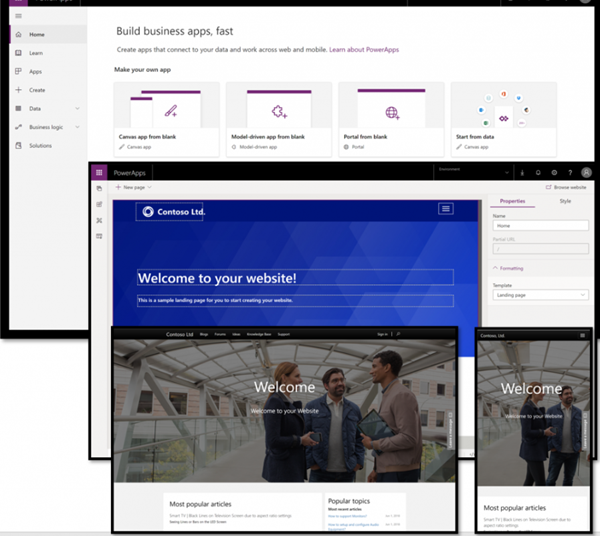
Currently I’m working on several COVID-19 apps for local authorities, to be able to help them assist people in need. As part of this, each local authority has a portal within the solution. The portal itself is a Power App Portal, and I haven’t really had exposure to them before.

blog.atwork.at | Hello, PowerApps Portals (and external users)!
Default portal view, not the one we implemented!

Installing a Power Apps Portal comes with quite a large number of solutions in order to get it to work. More on this below.

Due to the way in which we’re engaging with our clients, the solutions are built in a single tenancy (different environments, of course!). We’re then inviting the users in as guests through Azure Active Directory, to be able to access functionality etc. This works well – we don’t need to worry about managing user accounts, AAD permissions, etc. However it also means that we don’t have any Office 365 licenses within the environment itself.

Now we have workflows that are sending emails out around the portal – registrations, password resets, etc. These are being generated automatically by the system, but as there’s no Office 365 mailbox for the user, they’re queuing up.

It’s not possible to authenticate a mailbox belonging to an external user (we tried!), as the system needs a native (full) user with an active mailbox to be able to send out emails. This is of course unlike Power Automate, where you can create a Send Email action and use specified credentials for logging in to send an email.

So, we did what any normal system administrator/configurator would do. We opened up the relevant (managed) solution, and from there opened up the workflow that we needed to modify. Things looked normal at first – we deactivated the workflow, and started poking around it to see what made it tick.

We came across the part that actually took user credentials to send the email that was being generated, and modified this accordingly. Then we saved the workflow, which was successful. However, upon trying to then reactivate the workflow, we got the following error message (helpful, isn’t it!):

Nicely it gives the option to download the log file around the error. This can usually be quite helpful (at times), so we thought we’d take a look at it. Behold the following (I’ve had to shrink the screenshot to allow it to fit on the screen!):

Isn’t that ‘beautiful’. Don’t worry if you can’t actually make out the error information – none of it makes any sense, at least not in a practical sort of way.

Being stuck at this, I thought to reach out to one of the community Power App Portal champions, Mario Trueba. I’ve known him for a while, and he’s just simply amazing. Having asked if I could jump on a call with him for 15 minutes to diagnose (& hopefully find an answer!), we spent almost an hour!

He suggested trying to use the classic interface, as I had been doing all of this through the new UI. So off I went to open up Classic (I’ve missed this, I will freely admit). Through there, we opened up the solution, opened up the workflow, and re-activated it. Or not, as it happens – even through the Classic UI, we weren’t able to do so. We tried a variety of things, but to no avail. It just simply wasn’t happening!

I was slightly concerned that there was an underlying issues with Portals, perhaps from some legacy CafeX code. I had tried searching with Mario for error details contained within the log file, but we couldn’t find anything that would fix it.

The next morning on waking up & checking Twitter, I noticed someone tweeting around Portals, and engaged with them. They turned out to be on the Portals development team, and told me to shoot them over an email with the details, which I did. They then replied to me, saying that it wasn’t anything specific to Portals, and that I should raise a support ticket. That crossed one item off my list (a Portals issue), but I was still needing to get things resolved.

So I went off & raised a support ticket. A few hours later, a very nice tech support person called Siva gave me a call to discuss the issue. We hopped into Teams, and in what I can only describe as the SHORTEST period of time that I’ve ever experienced, the issue was resolved (it took 7 minutes in total. Yes, I know…). Don’t worry – I’m not going to leave you hanging here!

See, what the ‘issue’ (and I’m deliberately putting it in quotes) was turned out to be something quite simple, yet quite strange.

Essentially opening the workflow from the managed solution somehow (& I don’t know HOW) inherits the ‘managed’ property. This is whether we open it from the new UI, or the classic UI. As a result we’re able to deactivate it, but we CAN’T reactivate it due to the system thinking that we’re modifying a managed component (as an aside, it is interesting how I did manage to save it though?). This was what was causing things to fall over, and the error message was really not helpful at all.

It’s also not a matter of being a Microsoft (or ISV) managed solution. I’ve replicated this happening with a solution that I’ve built, exported as managed, & then imported.

So how did we do it? Well, there are two ways in which this can be dealt with:

Either we can go to System/Processes, find the workflow there, open it up, and then reactivate it:

Or we can open up the Default solution, navigate to processes, select the workflow, and then reactivate it:

Both methods work just fine, and as mentioned earlier on, I’ve since replicated this on workflows in other managed solutions.

To me, this is somewhat strange, and should work regardless. According to Siva, it’s the desired system behaviour, though I have no idea why someone should want it to work in one way, and not in another.

So if you’re reading this, and you might just happen to know someone in the necessary Microsoft engineering/development team who’d be able to answer this, could you point them my way? I’d love to engage them to find out why, how, and if they could pretty please change this?

Thoughts around the Connection entity

I decided to write this post due to currently looking at the Connections entity. This is for a current project with a very specific purpose. When this came up, my thoughts went back to a previous project some years back when we also looked to use the Connections entity. I therefore thought that it would be good to recap & share my experience.

What are Connections?

Now, the Connections entity truly is a wonderful piece of work. It’s one of the core features that doesn’t actually get much time or effort devoted to it! However, it underpins a lot of the way that Dynamics 365 has been built to work over time.

The best way to summarise Connections is:

Connections are a very easy way to connections records without needing to have to create a custom relationship in the system. Connections can be used between records from the same entity, or from different entities.

See, you are able to connect one record to another record within the system. This could be account to account, account to contact, or contact to a custom entity. There are practically no limits, apart from the extent of your mind! All of this is done by leveraging the functionality that Connections brings to the table.

Note that I’m not talking about lookup fields here, which are also great, but work differently, and require creating a relationship between entities (or even within the same entity).

Just a quick reminder here that custom entities need to be enabled for connections – it doesn’t happen as standard when creating them. You can either do this when creating it, or you can edit the settings for it later:

How to use Connections

In order to connect one record to another, you need to open the first record & click the Connect button on the toolbar:

You’ll then be presented with the New Connection screen, where you’ll select the record that you want. Click the ‘All Records’ item at the top & then ‘Change View’ to select the actual entity that you’re wanting to look for:

You then select the record that you’re wanting, and save. Hey presto, the two records are now connected! To see the connected records, look at the associated ‘Connections’ setting from either record:

OK, so this is really all brilliant. For the absolute majority of situations, it works, and works well. There’s nothing better for it. There are a few small issues, such as the fact that you can’t use Business Process Flows or Business Rules for custom logic, but instead need to use Javascript, but for the most part they work well.

Edge case scenarios & issues

However, there are some edge case scenarios that I’ve come up against, which is the whole purpose for writing this blog post.

What happens if you’re trying to use Connections to establish a hierarchy of records. Eg one record is a parent of another record. Well, you could use a lookup field instead, but if you wanted to define specific attributes for the actual relationship, that wouldn’t work.

Here’s the scenario. You’re needing to capture the relationship between different people, along with certain attributes (eg if they’re a legal guardian, or a trustee, or have power of attorney, etc). You’d think that Connections would work brilliantly for this. After all, you can modify the actual Connections entity to add custom fields onto it. So for example, you could have something like the following:

Note: I’m not referencing Connection Roles, as you can only have a single connection role per connection. In the scenarios I’m handling, I’m needing to have multiple attributes per connection.

So you create the connection between the two records, and you set the attributes that you require. All good. What’s also good to remember is that Connections are bi-directional. You can view them from either ‘side’ of the connection. Eg:

Record 1

Record 2

That’s actually really helpful & useful in the normal scheme of things. You can easily see connections from either side.

But there’s a catch, or even (in our case above), an issue. If we open up each of the two Connection records, we’ll see the following data.

Joe Bloggs connecting to Helen Sommers:

Helen Sommers connecting to Joe Bloggs:

Can you spot the issue? Of course you can! On BOTH of the connection records, the custom fields that we set have the same values. We originally connected Joe Bloggs to Helen Sommers as the Legal Guardian, Power of Attorney & Trustee. Well, if we open up the connection record from Helen Sommers, we’re seeing the same values set, just in the opposite direction!

This is actually due to how Connections work. When you create a connection Record A to Record B, the system automatically creates a mirror Connection record from Record B to Record A. When it does this, it copies all of the values that you’ve set over to this mirror record.

So when you look at the data, you can’t actually see how the structure should work. It’s an issue. Especially if you’re passing the data to other system/s that may need to evaluate it. They just can’t understand this properly, and you’ll get some VERY unwanted results out of this.

Now, there is actually a field within Connections that shows which record is the ‘master’ (ie the one you actually created), and which one is the ‘mirror’ that the system created:

However even with this in place, we’ve found issues when using it:

  • If you’re relying on people looking at the record to see the information, they’re going to make mistakes (ie not checking this value). With the fact that the values are also displayed on the mirror record, this is very prone to user error, and isn’t a good way to do things
  • If passing information to another system (ie the record & the values), you need to program it to only allow it to pass records with this flag set correctly. If the other system is writing back data, it also needs to be configured to write back to the same record.

Summary

With all of this in mind (& especially considering that users may create connections from the ‘wrong direction’, which is quite possible to happen), it’s important to think of the best way to architect systems for regulatory purposes. Financial, legal & other judicatory requirements need to have a system that can handle them properly & accordingly, and not leave room for error.

Therefore, if you’re looking to handle these sorts of scenarios, I’d recommend to look at implementing a custom entity for those specific connections.

Another benefit of this is to separate out these connections from the general connections entity. That way, you’ll also be able to handle security appropriately, which is usually applicable in these sorts of situations. It will allow you to easily allow only a subset of users access (read and/or write) to this data, rather than trying to apply it to Connections (which is going to be a major headache!)

Canvas App record set Regarding field

For the last few days, I’ve been working on an app. Not just any app – it’s a canvas app! (It actually happens to be a COVID-19 related app, for local authorities to use to contact vulnerable people & check they’re OK etc).

Now, my background isn’t canvas apps – it’s the model-driven app approach. I’ve been doing this for years – after all, my experience goes back to Microsoft CRM 3.0! So that’s all really nice & easy for me (even with some of the more modern ‘tweaks’ that have been brought in). Canvas apps, on the other hand, are very different from what I’m used to, and are taking quite a bit of getting used to.

See, the following example is easy in a traditional model-driven app:

Create a contact, save various attributes to the contact record. Then create a task, and set the Task Regarding field to the contact that you’ve just created

Looking at that, my mind says ‘easy-peasy’!. I create the fields required for the contact entity (& task entity as well, if needed). I then add them to the entity form/s (creating or modifying the form view/s as well). Finally, I create a Business Process Flow for users on the contact entity, and append the task creation to it. Simple, and done – not much time needed to be spent.

But when needing to do this as a canvas app, things change around QUITE a bit. I can’t create that business process flow, and I have multiple screens to have all of the information on.

Now, if I could add the ‘Regarding’ field to the edit form grid, and apply formatting to it, I could hopefully then just submit & save the grid. However, that unfortunately doesn’t work. I can add the field, but when I do so, I get the following:

So that doesn’t work. Hmmm – how then should I go around doing it?

I did (obviously!!) take a look online. Here I came across this wonderful article all about polymorphic lookups (https://docs.microsoft.com/en-us/powerapps/maker/canvas-apps/working-with-references). Having read, & re-read through it, I’m STILL not understanding what exactly I should be doing by this!

So I was stumped. Thankfully we have an amazing community, and on reaching out to someone within it (thanks Eric!), I was helped out. I therefore thought to write this post up, so that it can help others as well.

There are two parts to this, for my specific scenario:

  • Saving the contact record down. This is a matter of using (in my case) the command ‘SubmitForm.ContactInformation’ on my contact form screen. I can then also set a variable if I want to, to refer to the Contact record GUID (hey – I’m trying to be cool here & show that I can!)
  • Finding a different way to save my task record. I accomplished this using the Patch statement – this thankfully wasn’t too difficult for me to grasp how it worked.

So, how did I go about using the Patch statement? Well, the function is referenced here – https://docs.microsoft.com/en-us/powerapps/maker/canvas-apps/functions/function-patch. With Eric’s help, I soon started to see how to do it.

What I did was add the following line in my Patch statement when I was wanting to save the task: ‘Regarding:ContactForm.LastSubmit’ (‘ContactForm was the name of the form for the contact information). What this did was write into the record the GUID for the contact record that I last saved.

An alternative to this would be to use a variable instead, and set it there.

Thankfully this all worked. I’m now able to create Task records and set their Regarding field value to the Contact that I set up before them – which is the exact thing that I was trying to do!

I hope that this has been helpful – leave a note in the comments if you’ve found another way of doing this.

Power Platform Admin Centre

Ever wished that you had a single place to manage/create environments, see statistics for all of your systems, view data integrations, etc?

Traditionally, it’s sometimes been quite hard to see all of this – admins have had to go to multiple places to find this information, and then bring it all together manually. A tedious task at times! This was especially true if an organisation had multiple environments – truly a major headache.

Image result for system admin frustration

But now…..there is an answer!

With the new Power Platform Admin Centre (note – it’s currently in Preview), this is all a thing of the past. It’s now extremely easy to see a massive amount of information in just one place. This covers environments, analytics (not only Dynamics environments, but now also the CDS, Flow and PowerApps for a tenant), Data Integrations, Data Gateways, etc.

The URL to use is https://admin.powerplatform.microsoft.com . When logging in, you’ll see the various options in the left hand menu bar.

Some screenshots (some obfuscation for privacy reasons):

Environments

Analytics

CDS Information

So go log in, and see what wonders you can find. Happy discovery…and enjoy the freed up time that you should now be having!

See which fields have been edited during PowerApps Entity Design

Following on from my tip on Friday ( https://thecrm.ninja/2019/06/28/creating-new-field-s-on-existing-powerapp-entity-quick-tip/), I’ve also realised something else that can be really useful.

Imagine the following scenario:

You’re in the middle of editing the values of specific fields within Dynamics. Suddenly a colleague comes over to your desk to ask you something, or you get a phone call (obviously to assist with a technical matter!). You spend some time on the call, and deal with whatever is needed. You hang up, and look back at the screen.

Hold on. The train of thought is gone. You’re looking at the overall entity, and can’t remember if you did update a specific field, or you didn’t? And if you did, did you already publish the entity, or not?

You’ll need to open up each field that you’re needing to update, to see if you already dealt with it or not. MAJOR pain and headache, and loss of productivity.

https://4.bp.blogspot.com/-pu0blpWIvFw/Wxj3YnjbJJI/AAAAAAAAi8A/ueqrxETgAgA-XBEWC9EMdxZ6ZDr-PbmjQCLcBGAs/s1600/productivity%2B1.jpg

Well…not to fear! When dealing with field values in PowerApps Entities, there’s an extremely helpful visual cue for this (outlined below):

How it works is simple:

  1. You open up an existing field in the Entity Designer, and edit something, anything at all, within it
  2. You save it
  3. Bingo! The icon shows next to it!
  4. When you then Publish the entity, the icon disappears

Now, what could we possibly do with all of that time saved…..